Connecting Google Workspace
Last updated: July 7, 2026
After this article...
You'll be able to connect the Google Workspace integration to Lumos and resolve common issues that arise when connecting.
Required plan & roles
There's no required Google Workspace plan to connect this integration.
Your Google Workspace user should have access to the domain-wide delegation page, which is usually scoped to Super Admins.
Instructions
1. Find the Google Workspace card in your Lumos integrations (Reconnect or add new)
2. Click on the card.
3. Enter the email of a Google Workspace user with access to the domain-wide delegation page (usually a Super Admin).
4. Click the Generate Client ID button in Lumos and copy the value.

5. Log into Google Workspace using the email you entered in step 3 above and do the following:
a. Go to admin.google.com/ac/owl/domainwidedelegation.
b. Click the Add New button to add a new API client.
c. Paste the value from step 4 above as the Client ID.
d. Paste the following scopes into OAuth Scopes field:
https://www.googleapis.com/auth/admin.directory.user,
https://www.googleapis.com/auth/gmail.metadata,
https://www.googleapis.com/auth/admin.directory.user.security,
https://www.googleapis.com/auth/admin.datatransfer,
https://www.googleapis.com/auth/admin.directory.group,
https://www.googleapis.com/auth/gmail.settings.basic,
https://www.googleapis.com/auth/apps.licensing
Please note that if you've connected with a custom set of scopes (you can read more on this below), Lumos will only prompt you to add the subset of scopes that apply for your tenant.
If you would like to connect with more limited scopes or in a read-only manner, reach out to Slack Support to enable this.
When you copy the scopes in Google Workspace, you don't need to split them onto separate lines.
e. Click the Authorize button to authorize the Lumos API token.
6. In Lumos, click the Connect Google Workspace button.
Note, providing the scopes initially then downgrading them later to read-only versions will still allow syncs to complete. Provisioning actions will not be supported.
Scopes
We cannot and do not need to read your Google Drive, Google Docs, Google Sheets, or other sensitive information in your workspace.
If you want to use a custom set of scopes, please contact us at support@lumos.com or via Slack and describe your use case and requirements so we can recommend the best path forward.
Access to scopes is granted via domain-wide delegation by a Google Workspace administrator.
Scope | Default | Description |
✅ | Allows us to list all users in your Google Workspace domain and update those users. | |
https://www.googleapis.com/auth/admin.directory.user.readonly | ✅ | Allows us to list all users in your Google Workspace domain, but not update them. |
✅ | Allows us to list and manage Google Workspace groups. These are used for group assignments (ex: setting up App approvers). | |
https://www.googleapis.com/auth/admin.directory.user.security | ✅ | Allows us to discover all apps your employees signed into through Google. |
✅ | Allows us to reroute emails upon the offboarding of a user from Google Workspace. | |
✅ | Allows us to transfer a user’s data upon the offboarding of a user from Google Workspace. | |
✅ | Allows our machine learning algorithm to find all apps used by your employees based on email subject lines. This scope does not grant us access to your email bodies and attachments. Many customers appreciate that Lumos can create their full app inventory without access to extremely sensitive data. | |
✅ | View and manage G Suite licenses for your domain | |
❌ | Perform calendar related offboarding actions, including removing a user from all Calendar events | |
https://www.googleapis.com/auth/admin.directory.rolemanagement | ❌ | Ability to provision and manage access to Google Workspace Admin roles |
https://www.googleapis.com/auth/admin.directory.userschema.readonly | ❌ | Sync custom fields associated with users |
In order to use a non-default scope, reach out to Support to configure.
Capabilities
Functionality | Type | Sync | Provision | Description |
Users | Account | ✅ | ✅ | User account records |
Groups | Permission | ✅ | ✅ | Access control groups |
Roles | Permission | ✅ | ✅ | Role definitions in Admin Console |
Deprovisioning Actions
Type | Description |
Deprovision | Permanently delete user's account and data. Recoverable within 20 days. |
Suspend | Sign user out of all GSuite sessions and mark account as suspended. Files stay intact, license is unaffected, and it can be restored anytime. |
Archive | Sign user out of GSuite and archive account. Files stay in Google Vault, but no new emails or calendar invites. This uses an Archive User license, it can be restored anytime. |
Custom Capabilities
These are additional capabilities that can be performed using the Google Workspace connector. These actions are behind a feature flag. Reach out to Support to enable.
Name | Description |
Remove from Calendar Events | Removes the user from all future Google Calendar events. |
Remove from all Groups | Removes the user from all Google Groups. |
Transfer Group Ownership | Reassigns group ownership to another user. |
Sign User Out | Signs the user out of all web and device sessions. |
Change Users OU | Update the organizational unit the user belongs to. |
Transfer Data | Assign user to receive the data of offboarded users. |
Reroute Emails | Assign user to receive rerouted emails. |
Free Resources | Free up resources occupied or reserved by a user (seats, memberships, etc.). |
Troubleshooting
I need to connect another Google Workspace tenant with a different domain
Please contact us via Slack or at support@lumos.com so we can assist, as this process currently requires assistance from our team.
I cannot connect or reconnect Google Workspace
When facing connection or invalid credential errors with Google Workspace integration, follow these steps:
In Lumos, open the Google Workspace integration and select Reconnect (or Connect for new integrations).
Enter the email of a Google Workspace Super Admin. Ensure the admin email you enter in Lumos matches the account you're signed into when setting up domain-wide delegation in Google.
Click Generate Client ID in Lumos and copy the value.
In Google Admin (admin.google.com/ac/owl/domainwidedelegation):
Click Add new (or Add New).
Paste the Lumos Client ID and required OAuth scopes.
Click Authorize.
Return to Lumos and click Connect Google Workspace (or Reconnect).
Wait 5–10 minutes for the API client to finish registering in Google, then try syncing Users and Groups again.
Verification steps if connection still fails:
Verify the Google Workspace client ID and scopes match what Lumos displays.
If your admin email domain changed, confirm it’s approved/allowlisted in your Lumos tenant (see FAQ below).
After reconnecting, retry any failed syncs.
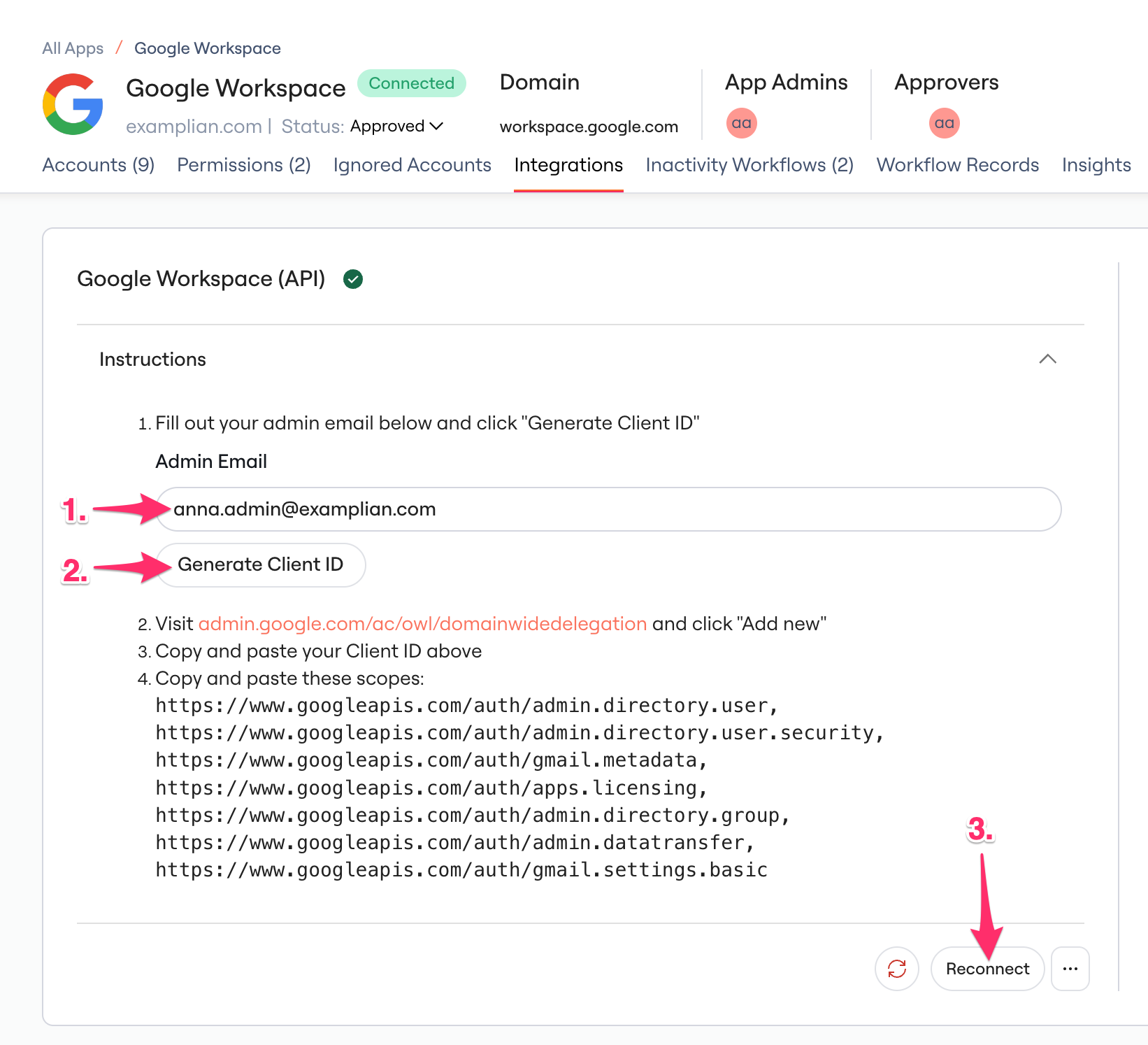
I need to change the Google Workspace User email for connecting
Add the new email in the Admin Email field, click "Generate Client ID" (this still uses the same existing Client ID, but will link the new email) and then click "Reconnect":
Reconciling Google Workspace
If you're in the Google Workspace admin portal and are looking to match user counts between Google Workspace UI and the Google Workspace integration in Lumos, follow the steps below.
Steps
1. Navigate to the Google Workspace app in Lumos.
2. Apply the following filters to the table:
Account Status: All Active Statuses
Source: Lumos integration
3. Make sure the row counts match!
In Google Workspace, download the file of users from the admin console and filter the Status [READ ONLY] column to "Active".
The number of records in the file after filtering should match the number of rows after applying your filters!

If the data still isn't matching...
Create a ticket for Lumos Support through Slack or via support@lumos.com with the following details:
The User CSV you pulled directly from the app (and a brief description of how you pulled it).
The link to your Google Workspace app in Lumos with the filters you applied.
FAQ
Why am I getting a "not an approved email for your domain" message when connecting Google Workspace?
Your new Google Workspace tenant likely has a different email domain, and new domains need to be allowlisted in your Lumos tenant before you can add them.
Please contact us via Slack or support@lumos.com with the email domain tied to your new Google Workspace tenant and we can add it to your account. Once we confirm, you can finish the connection.
