Connecting Slack (Messaging)
Last updated: June 4, 2026
This article is for connections to the Slack Messaging connector, not Slack User Management (provisioning and deprovisoning). For connections to Slack User Management, refer to the Connecting Slack Provisioning.
After this article...
You'll be able to connect the Slack integration to Lumos and resolve common issues that arise when connecting.
Required plan & roles
There is no minimum plan needed to connect the Slack integration. If you want to suspend Slack user accounts via Lumos, you'll need the Business+ plan or above.
Your Slack user needs to be a Workspace Admin to connect this integration. If using Enterprise Grid, they will also need Org Admin/Org Owner at the Organization level.
Instructions
1. Find the Slack card in your Lumos integrations (Reconnect or add new)
2. If your company is on the Enterprise Grid plan, check the "Is Enterprise Grid?" checkbox. Otherwise, leave it blank.

3. Click "Connect Slack".
4. Choose the correct workspace in the Slack pop-up, then click "Allow".
If you are on Enterprise Grid...
5. If your company is on Enterprise Grid, you need to approve the Lumos app for your workspace and add it to any workspaces where you want to use the Lumos Slack app. Instructions to approve the app can be found here (under "Approve an app for your org") and instructions on how to add it to your workspaces can be found here (under "Add an app to workspaces").
Scopes
The Slack integration will ask for the following scopes via OAuth during setup.
If you do not require or allow admin scopes for Slack, you can configure a read only Slack integration to be able to send notifications to these users.
To configure a read only integration, choose the Custom Scopes version when connecting Slack within Lumos. From there, adjust the user scopes to remove the admin-level ones you don't need:
Remove
adminandusers.profile:writefrom the User scopes to disable provisioning/deprovisioningIf your Slack workspace is not on an Enterprise plan, also remove
admin.users:readandadmin.teams:read
The remaining scopes will still allow Lumos to read users and teams and send notifications. Just note that with these reduced scopes, you won't be able to auto-provision or deprovision users via Slack.
If you reconnect Slack with new scopes, you need to revoke your previous OAuth token in Slack, otherwise Slack won't request the new scopes when reconnecting!
Bot Token scopes
Scope | Required | Description |
✅ | View messages that directly mention @appstore in conversations that the app is in. | |
✅ | Send messages as @appstore | |
✅ | View files shared in channels and conversations that Lumos has been added to | |
✅ | Upload, edit, and delete files as Lumos | |
✅ | View messages and other content in direct messages that Lumos has been added to | |
✅ | Start direct messages with people | |
✅ | View URLs in messages | |
✅ | View messages and other content in group direct messages that Lumos has been added to | |
✅ | View people in a workspace | |
✅ | View email addresses of people in a workspace |
User Token scopes
Scope | Required | Description |
✅ | Administer a workspace | |
✅ | Access information about a workspace | |
✅ | Access a workspace’s profile information | |
✅ | Edit a user’s profile information and status | |
✅ | View people in a workspace | |
✅ | View email addresses of people in a workspace |
Enabling Slack Notifications
To enable Requestor/Approver slack notifications and communication between Requester and Approver via Slack, you must enable it from the Notification settings panel in Lumos. This requires Admin entitlements in Lumos.
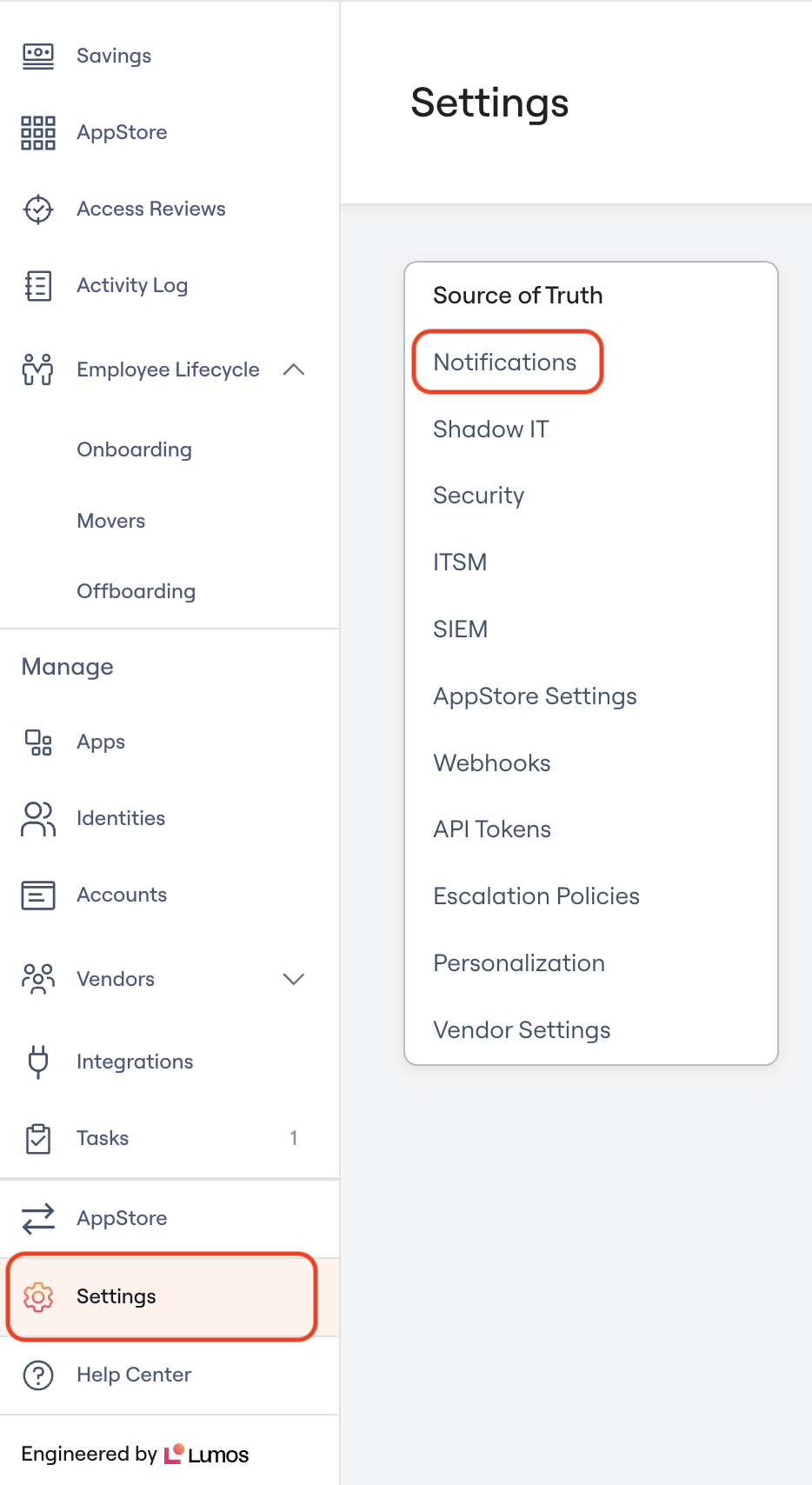
First, Click Settings in the Lumos Sidebar, then click Notifications from the Settings Menu.
Under Channel Preferences, Toggle the Notify users via Slack to On, then click Save Preferences at the bottom of the page.
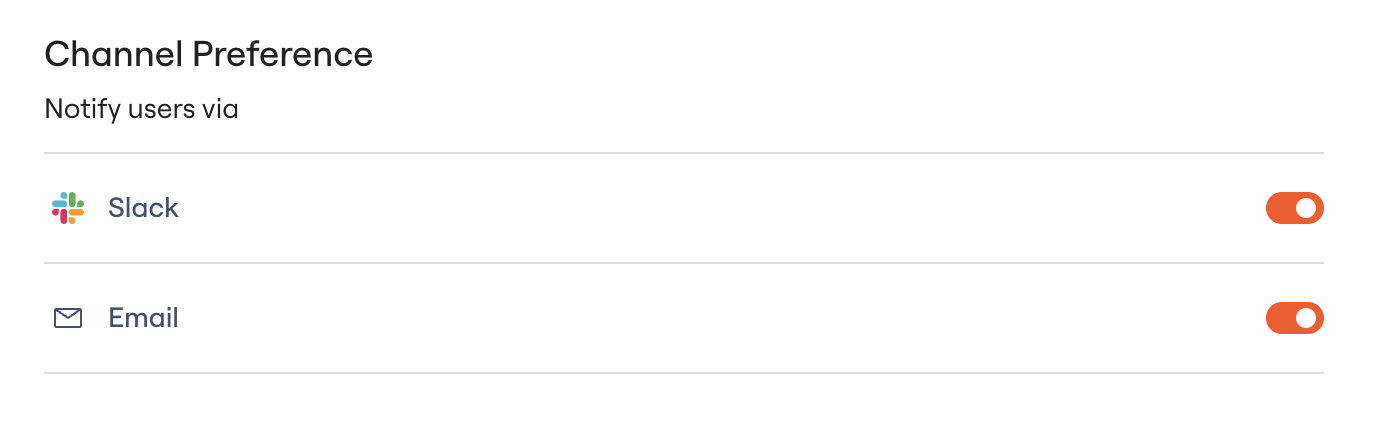
Congratulations! Your Approvers and Requesters will now receive notifications in Slack from the Lumos App, and will also be able to communicate with each other regarding any app requests.
Changing the Lumos App name in Slack
The Lumos App in Slack is by default created with the name "AppStore". If you want to change this, perform the following steps:
As a Slack admin, navigate to the
Installed Appspage in your Slack Workspace and select Lumos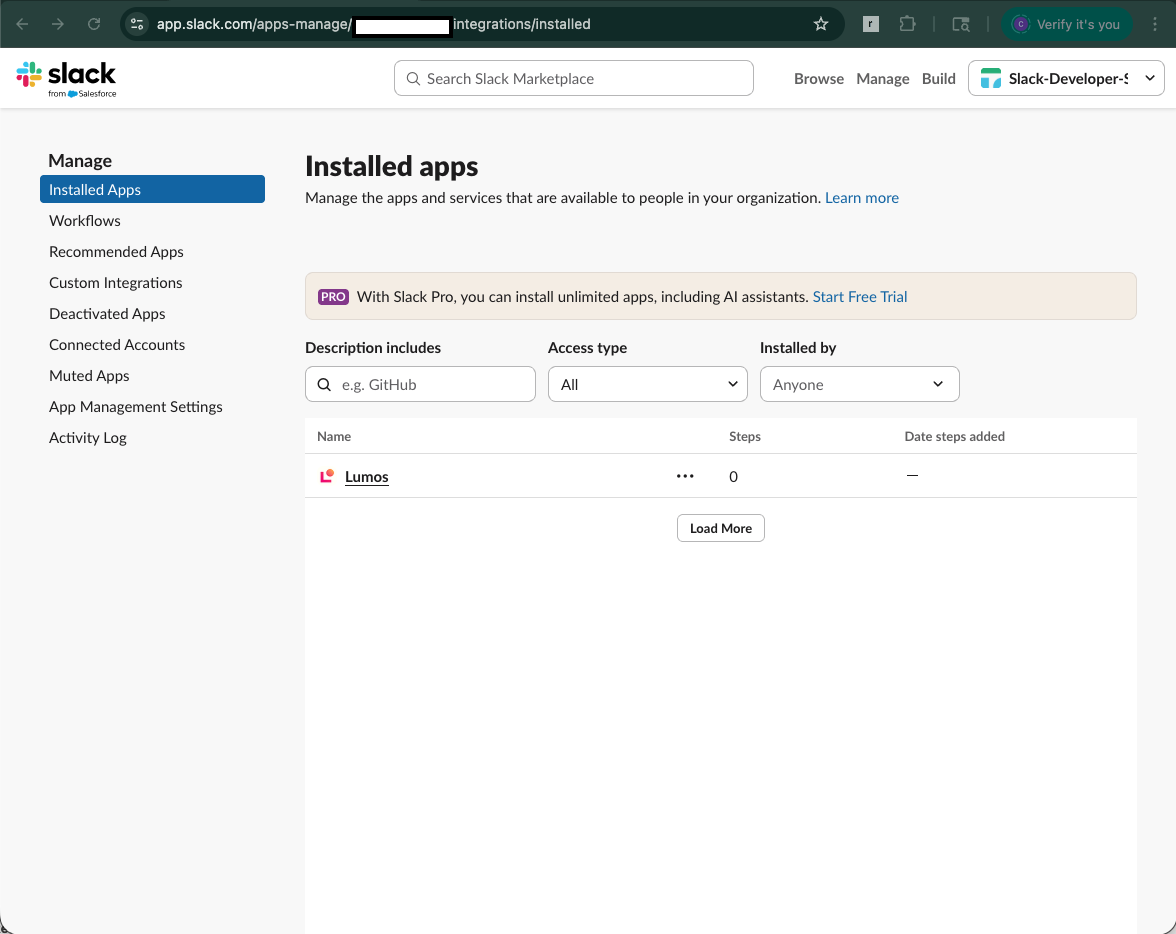
Click on
App Details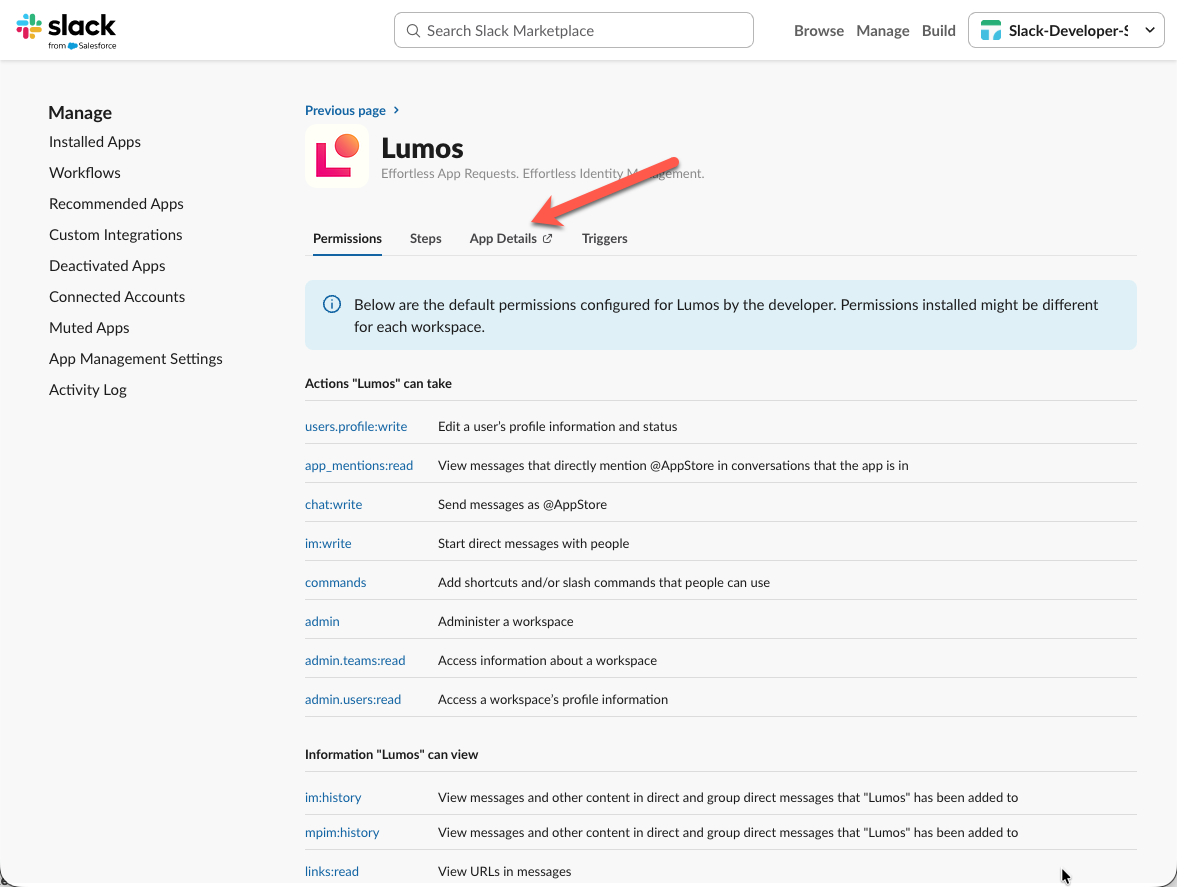
Navigate to the
Configurationtab, scroll to theBot Usersection and edit the AppStore bot name that is configured by default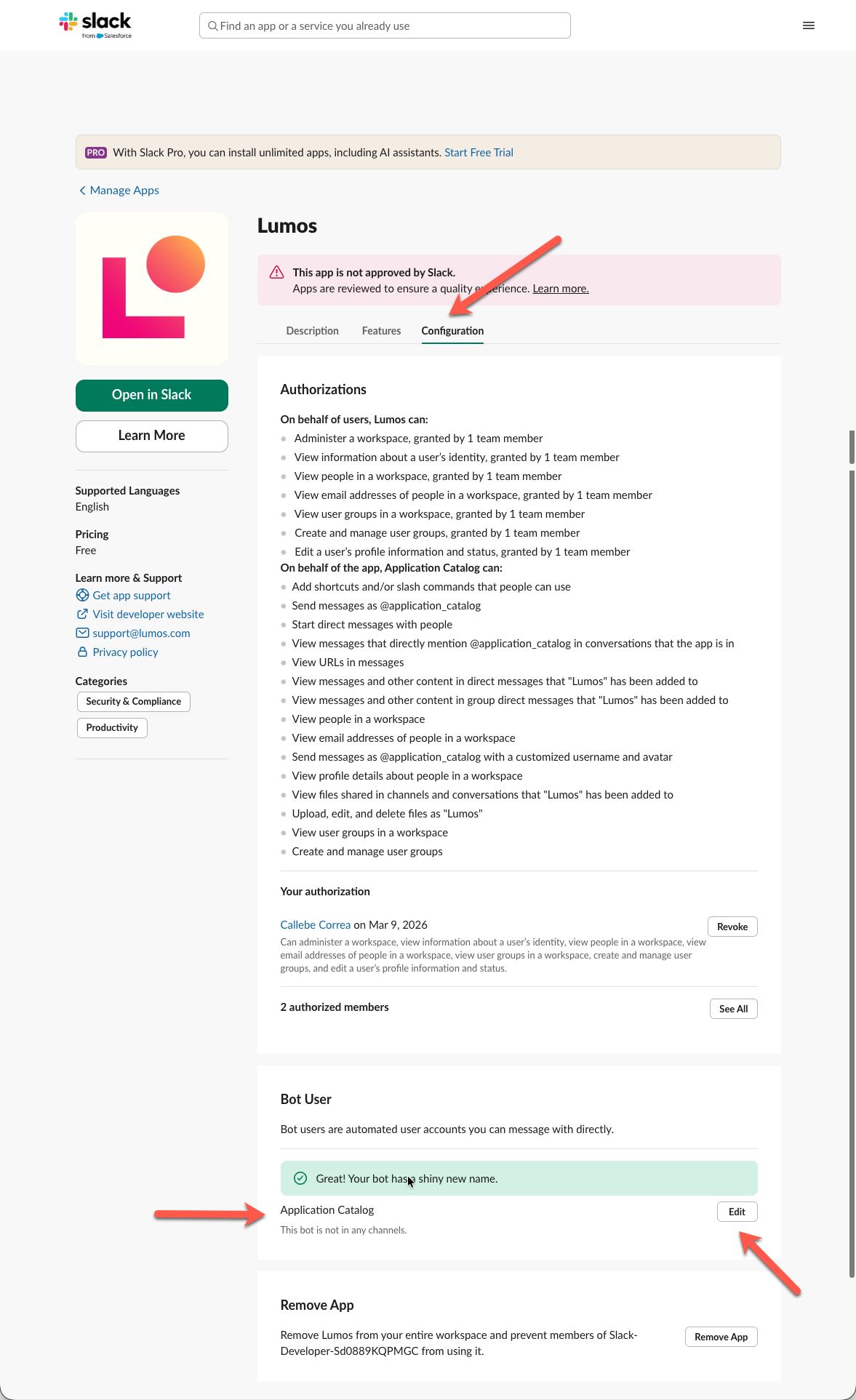
A Slack Workspace should only be connected via the Slack (Messaging) app to one Lumos tenant. If the same Slack Workspace is connected to multiple Production / Sandbox Lumos tenants, this can cause issues with Slack actions.
Troubleshooting
Slack is not returning any users.
Situation: Slack is connected but not returning any users in the Accounts tab.
Solution: You may need to approve the Lumos app in Slack and add it to your Slack workspaces. More details can be found in step 5 in the instructions above.
Downgrading scopes is not working.
Situation: You're working with the Lumos team to restrict Slack scopes (e.g. to read-only), and even after re-connecting Slack, your scopes aren't decreasing.
Solution:
Slack's APIs do not natively support downgrading scopes by re-connecting. In order to decrease your scopes, you will need to do the following:
User Token Scopes: Ask the Lumos team to "revoke" your current token, then re-connect the Slack integration
Bot Token Scopes: Go to your Slack admin panel and visit the "Installed Apps" page. On the row for the Lumos app, click on "..." then "Uninstall from your organization". Once uninstalled, re-connect the Slack integration in Lumos, and follow the connection instructions again.