Ask Albus: Getting Started Guide
Last updated: July 2, 2026
Overview
Albus is your AI agent for access data exploration, policy design, and identity investigations — grounded in real assignment, usage, and access-request data from your Lumos environment. Albus knows your company’s tools, teams, and policies, so you can ask questions in plain language and get structured, auditable answers back.
Use Albus Chat when you want to:
Explore who has access to what, and why.
Investigate risky access patterns, anomalies, and outliers.
Draft and refine least-privilege access policies from real-world data.
Run audit and compliance questions across your environment.
Get visual reports (matrices, diagrams, downloadable files) you can drop into decks, tickets, or audit evidence.
This article covers how Albus Chat works end to end — where to find it, how to ask good questions, how to read the response, and how to manage your chats. For copy-paste prompt recipes, see Awesome Albus Prompts.
Who can access Albus
Ask Albus is available to organization admins (including read-only organization admins). It works across your organization’s full access, usage, and identity data, so it lives in the admin experience of Lumos.
Ask Albus is not available to app admins or end users, and it does not appear in the end-user (employee) app. If you don’t see Ask Albus in the left sidebar, check with your Lumos administrator to confirm your role, as the feature may also need to be enabled for your organization.
Supported Capabilities
Open-ended exploration. Ask anything about your identity, access, and app inventory data — Albus will plan, investigate, and synthesize an answer.
Policy mining and design. Discover common access patterns and draft least-privilege policies grounded in actual usage.
Role anomaly detection. Surface outlier or risky entitlements and unusual access patterns.
Multi-hop investigation. Trace relationships across identities, apps, entitlements, and managers in a single question.
Visual artifacts. Return matrices, diagrams, and downloadable reports inline — ready to share or screenshot.
Reasoning trace. Every answer comes with a collapsible step-by-step view of how Albus got there.
Where to find Albus Chat
Albus Chat lives in the left sidebar of Lumos under Ask Albus (the top item in the Products section). Click it to open a new chat.
The landing screen prompts you with “What can I help you with?” and a quick-start input box. You’ll also see suggested starter prompts you can click to try Albus without writing your own question, such as:
“I’m new here! How can I help me?”
“Tell me about features in Lumos.”
“Show me access patterns across my organization.”
“Find my identities with the largest number of risky access.”
The Sessions button in the top right opens your chat history (covered below).
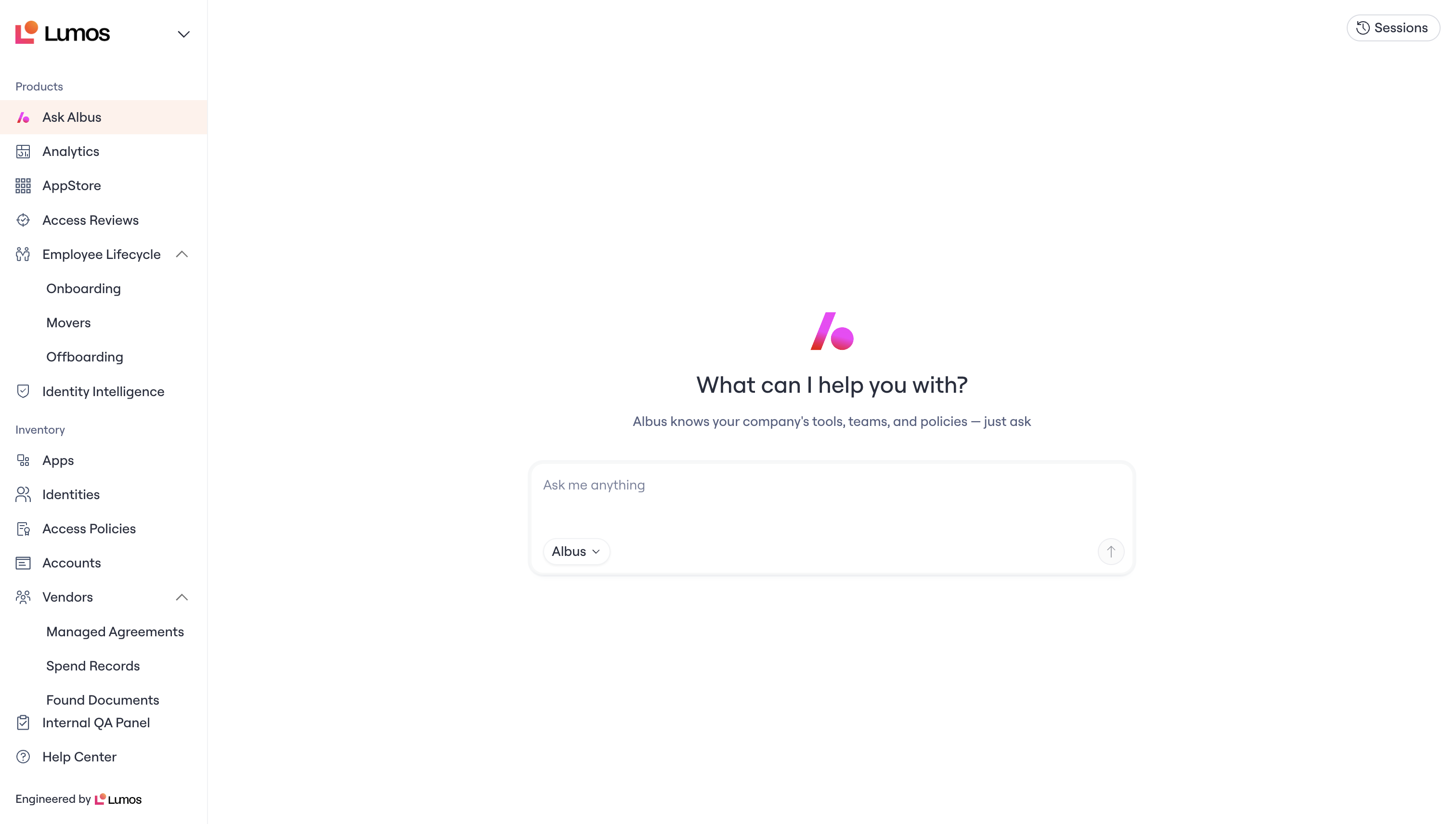
Starting a conversation
Type any question into the Ask me anything input box and press enter (or click the arrow button). You don’t need to pick a mode or toggle anything — Albus decides how deep to go based on what you ask.
A few tips for getting good answers on the first try:
Be specific about what you mean. “Inactive users in Salesforce who logged in over 90 days ago” gets you a better answer than “inactive users.” If you’re ambiguous, Albus will sometimes ask a clarifying question — answer it and Albus continues.
Name the app or group precisely. If you have multiple Salesforce instances or two apps called “Tableau,” say which one. Albus will ask if it can’t tell, but specificity speeds things up.
Lead with the goal, not the data shape. “Which contractors still have admin access 30 days after their contract ended?” works better than “give me a table of contractors and entitlements.”
Iterate. Each chat keeps full context, so follow-ups like “now group that by department” or “drill into the top three” work naturally.
How Albus thinks
For anything beyond a quick lookup, Albus plans before it acts. You’ll see a sequence of states in the response area as it works:
Analyzing… — Albus is reading your question, understanding intent, and planning an approach.
Thinking… — Each numbered step is a piece of the plan: pulling data, cross-referencing, aggregating, or synthesizing. Steps surface as bullets you can read in real time.
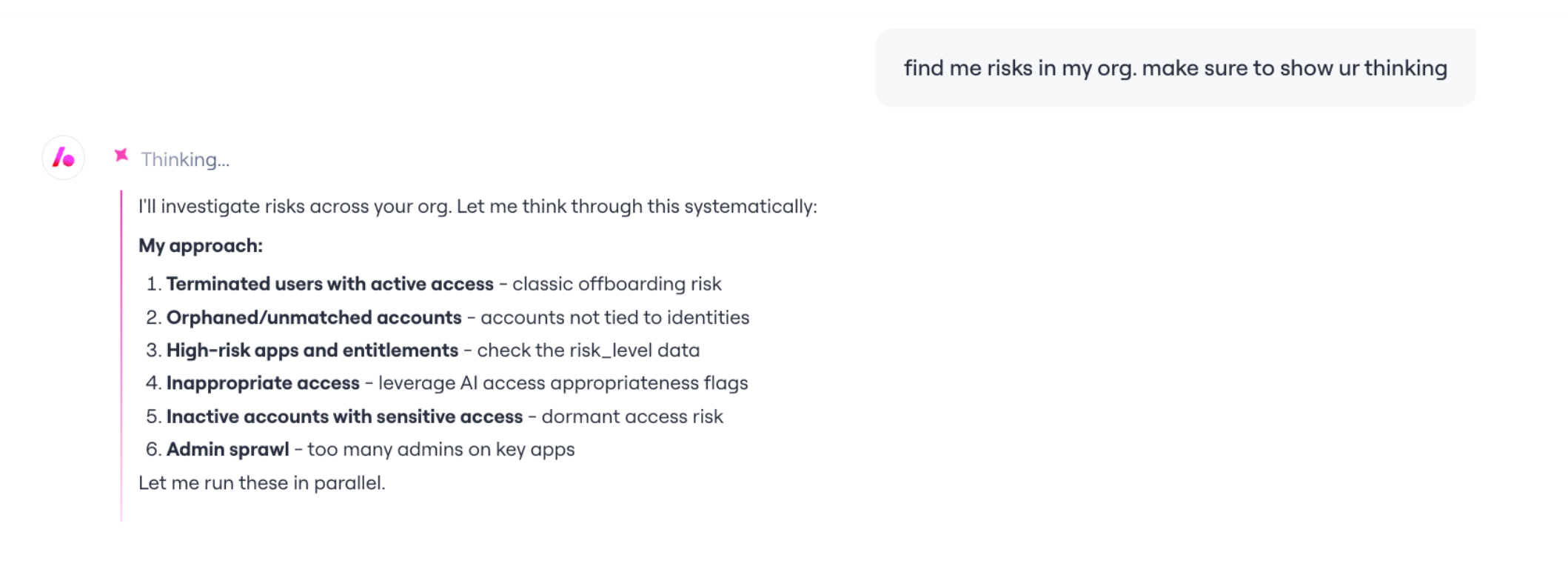
Completed N Steps — Once Albus is done, you can expand the reasoning trace to audit exactly what it did. For example, two steps might look like:
Thinking… The user is asking about features in Lumos generally. Let me get documentation.
Thinking… Let me synthesize a concise overview of Lumos features.
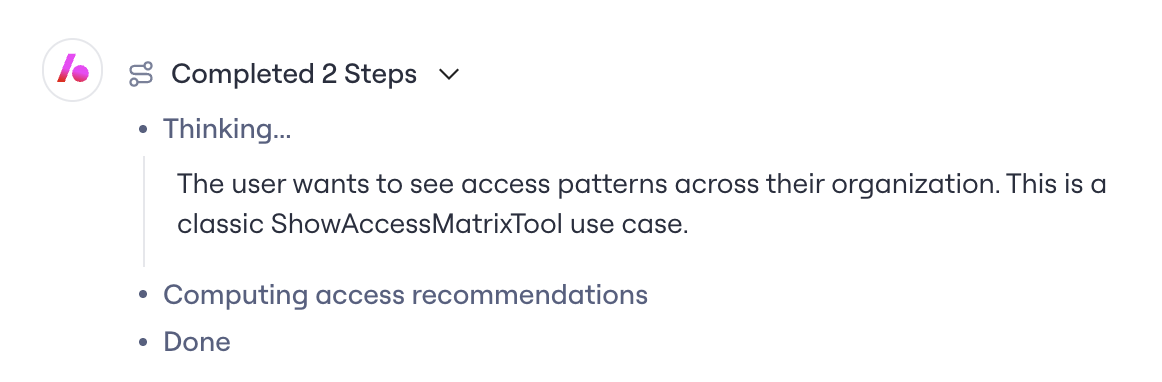
Done — Final structured answer appears below the trace.
For complex investigations, Albus spawns sub-agents that run in parallel — for example, one sub-agent pulling Non-Human Identity data while another pulls entitlement risk signals. Sub-agents appear as distinct steps in the progress view.
The reasoning trace is collapsible, so the default view stays clean. Expand it when you need to verify how Albus reached an answer (handy for audit prep or when you want to learn how to phrase a follow-up).
Artifacts Albus can produce
Albus doesn’t just return prose. Depending on what you ask, it can render structured outputs inline or in a side panel. The main artifact types:
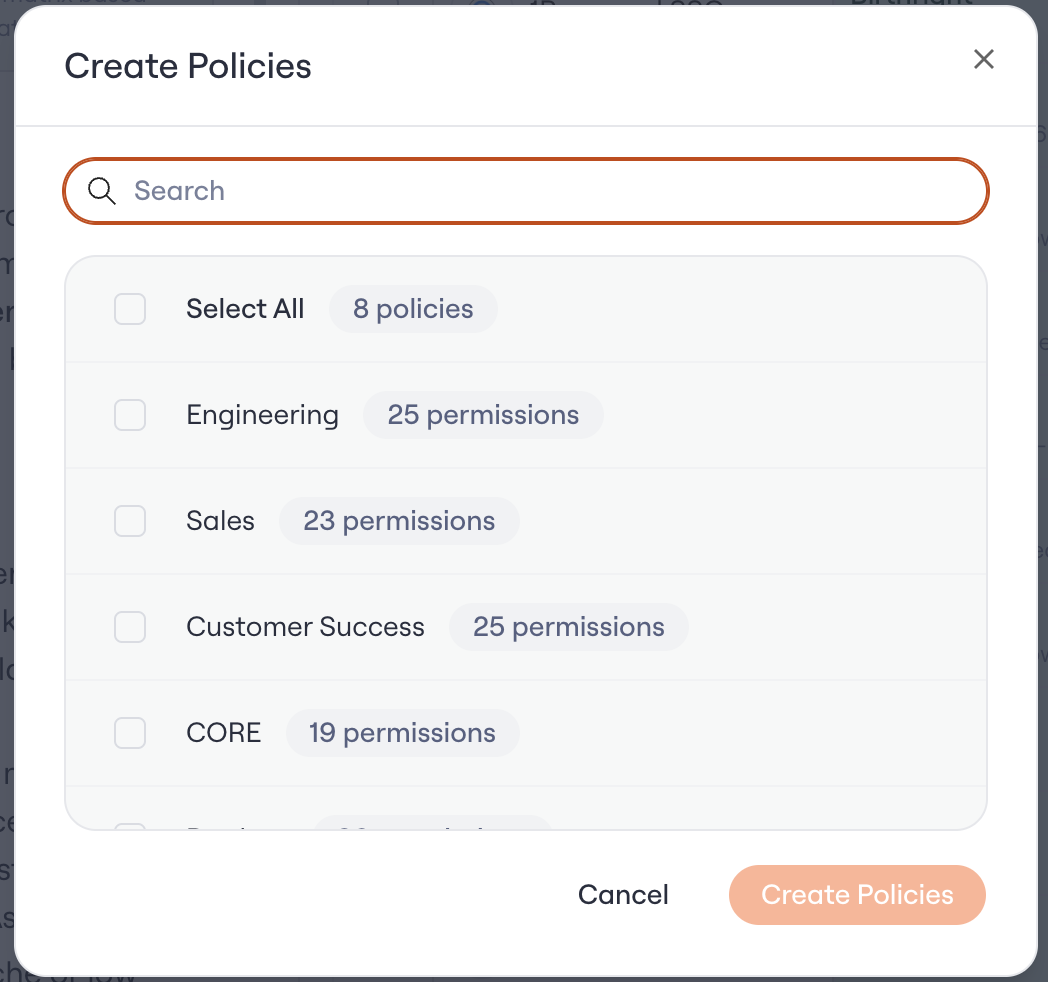
Access matrix. A grid view of who gets what, segmented by attributes like team, worker type, or manager. Opens in a side panel so you can browse the matrix while continuing to chat. Used heavily for policy design — you can see proposed birthright entitlements for an org at a glance and mark items to include, exclude, or set as self-service. Comes in two flavors: app matrix (rows are apps) and permissions matrix (rows are individual permissions inside one app).
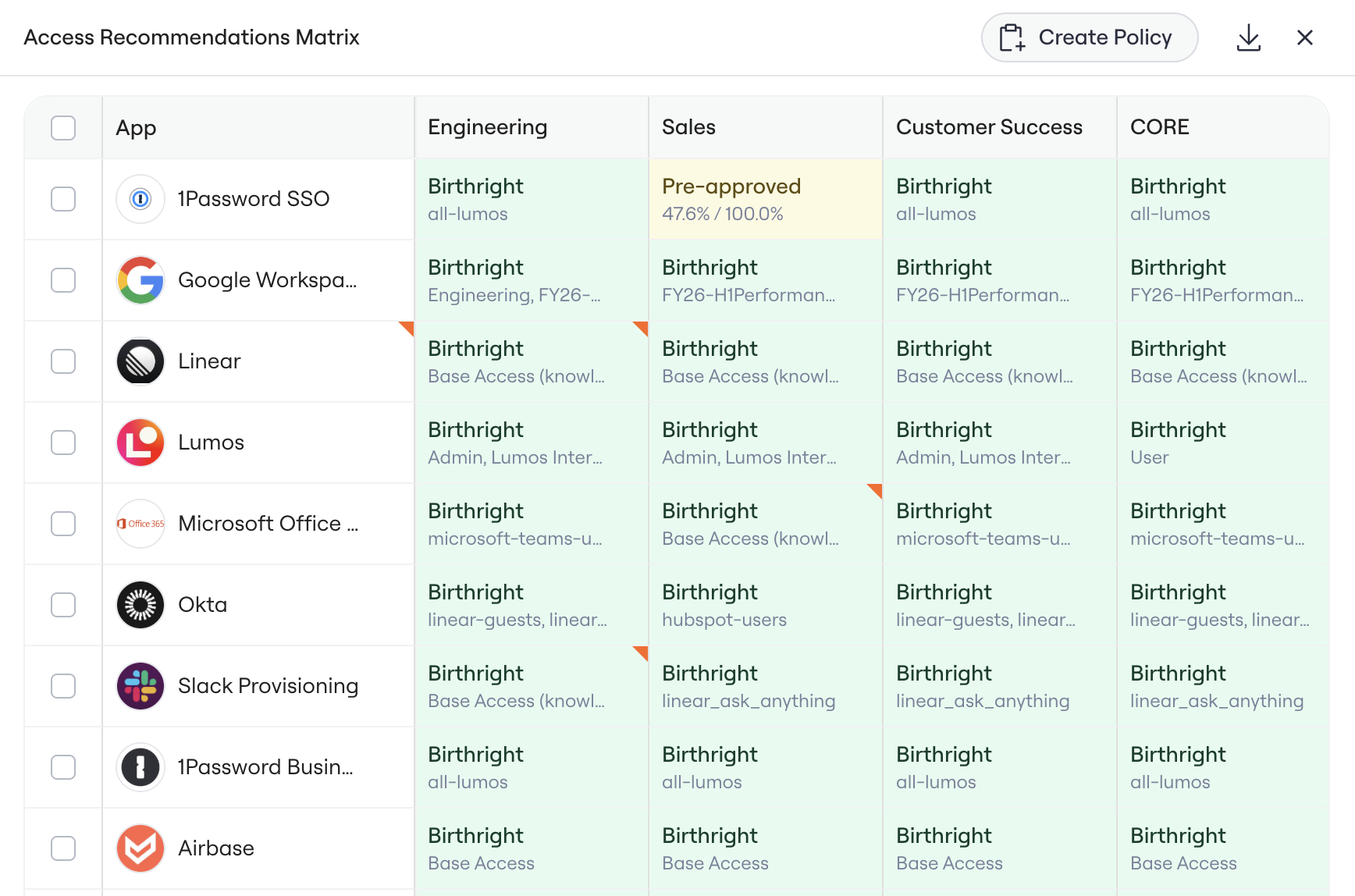
Create access policy. An interactive form that opens when Albus is ready to turn a matrix or a recommendation into an actual access policy. You can review the proposed policy, edit it, and save it directly from chat — no need to switch over to the Access Policies page.
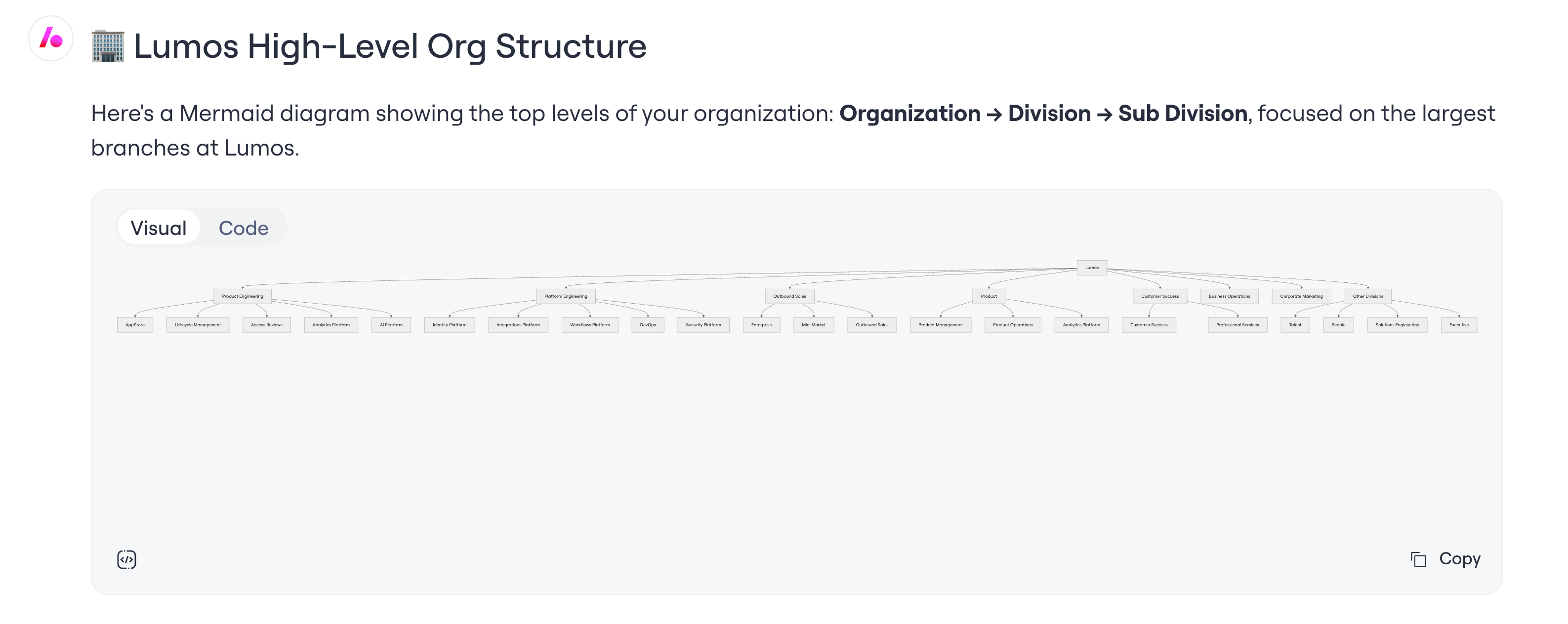
Mermaid diagrams. Inline flow charts, pie charts, sequence diagrams, ranked comparison matrices, and other visuals. Great for relationship questions (“map the manager chain”), comparisons (“score these attributes against risk”), or anything you want to screenshot into a deck.
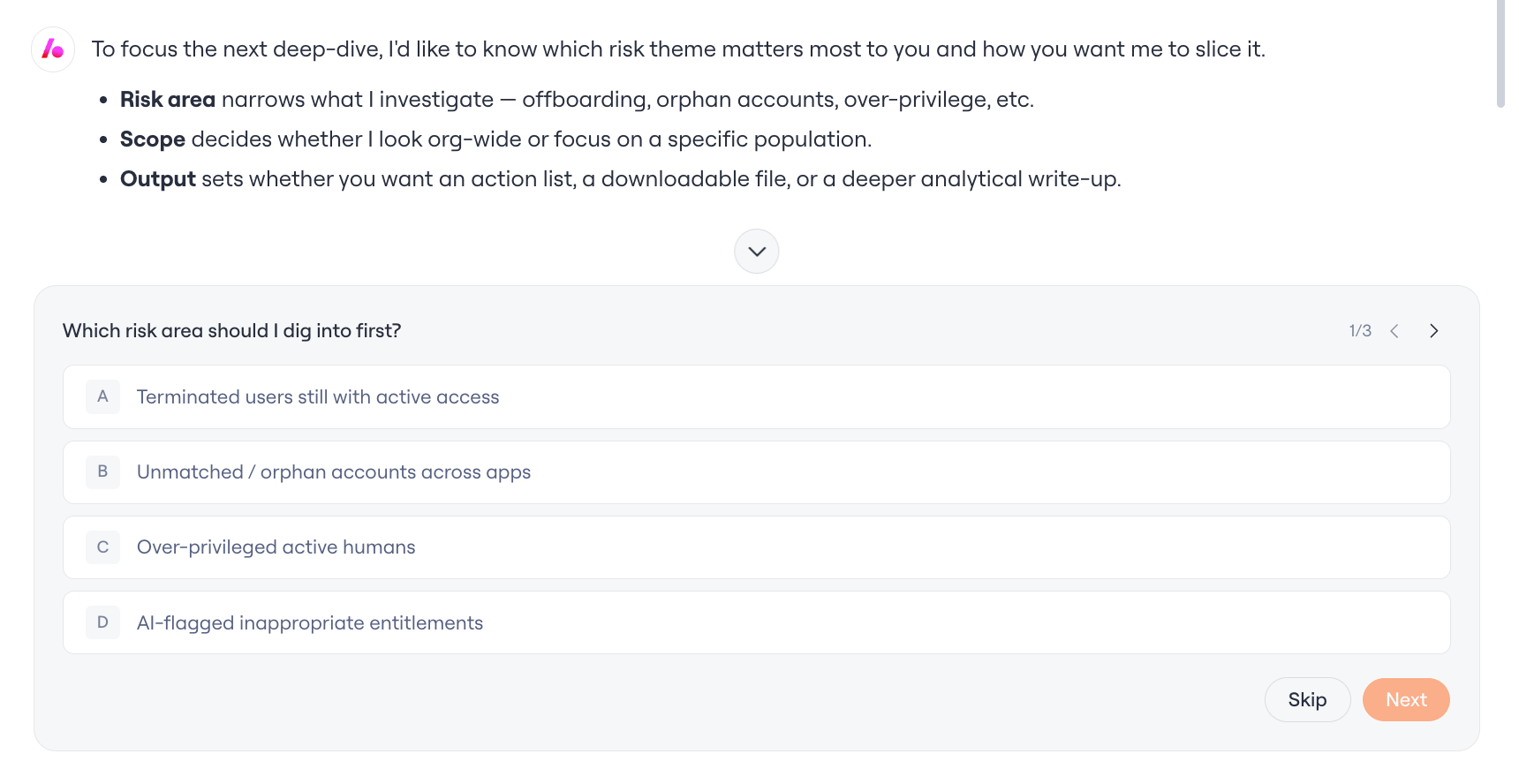
Survey artifacts. Structured inline output you can fill in or capture — used when Albus needs to gather your decisions across many items at once.
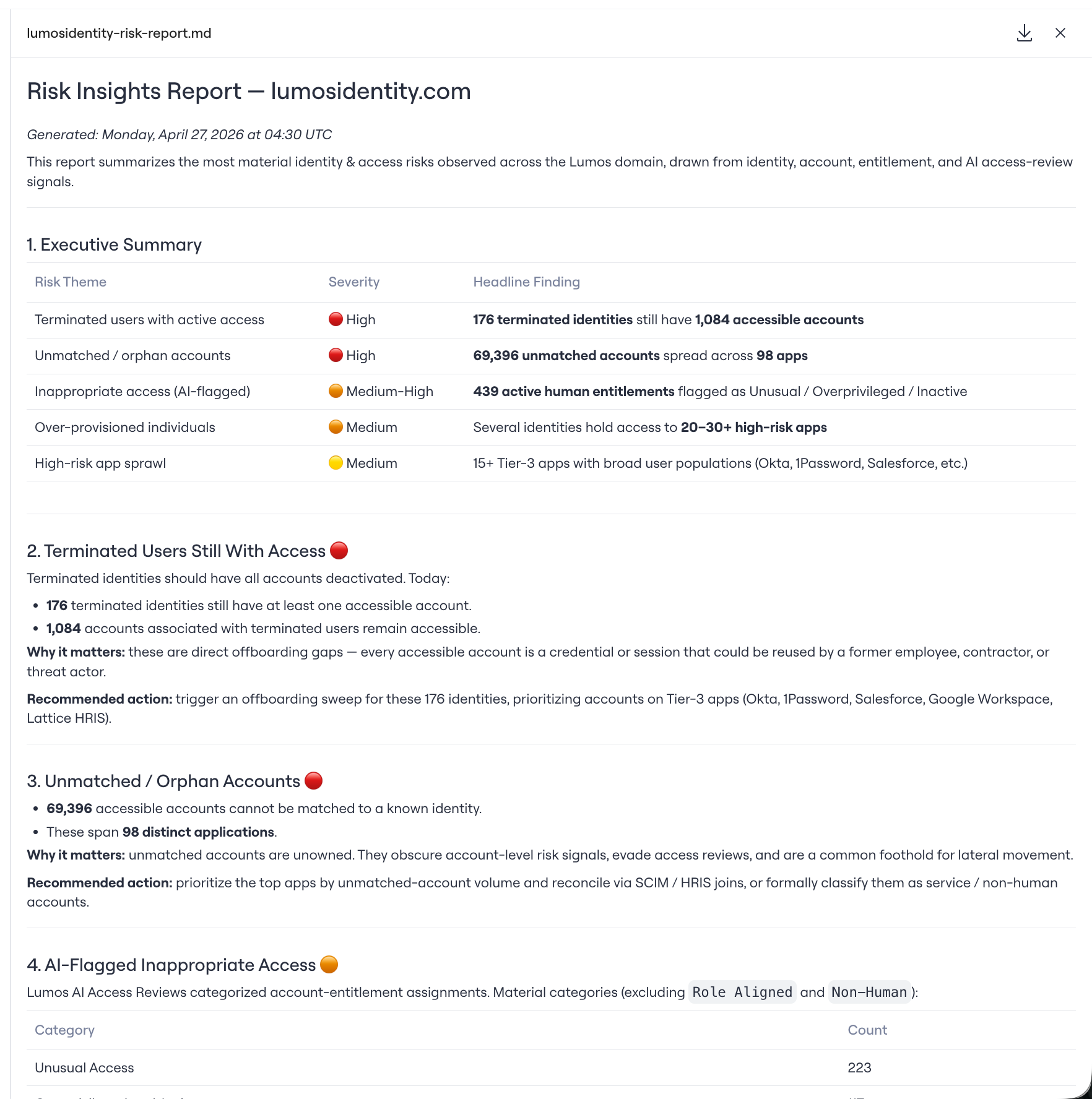
Downloadable file and text artifacts. Albus can produce CSVs, text exports, or other downloadable outputs that leave the chat. Use these for tickets, audit evidence, Slack shares, or anything you need outside Lumos.
If Albus picks an artifact, it renders directly in the response (or opens a side panel or modal for matrices and policy creation). You can keep asking follow-ups and Albus will reuse or update the artifact as needed.
Managing your chats
Click Sessions in the top right to open the chat history panel. From there you can:
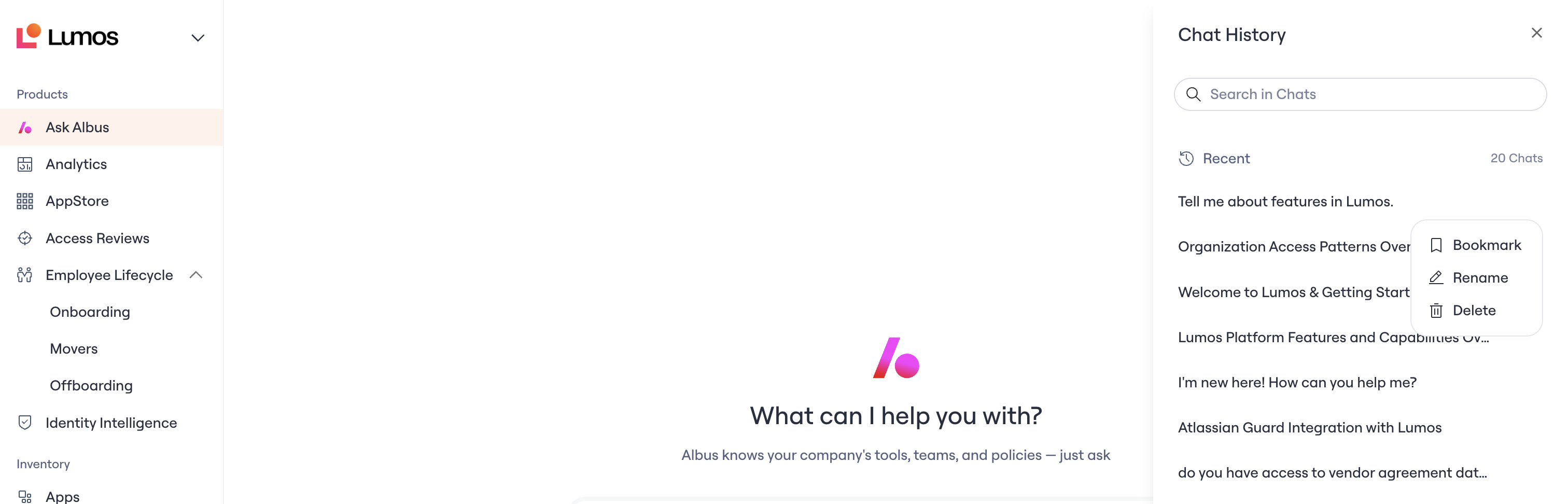
Search existing chats by title or content using the search box.
Browse Recent chats — the most recent 20 conversations appear in the panel, named by topic (for example, “RBAC Access Policy Build Workflow,” “Org-Wide Access Patterns Overview”). Albus auto-titles each chat based on the conversation.
Bookmark, Rename, or Delete any chat using the kebab menu on the right side of each row. Bookmarks pin a chat so you can find it later; rename to give a chat a custom title; delete to remove it entirely.
Click any chat to reopen it. All context, reasoning steps, and artifacts are preserved — you can pick up where you left off.
Rating responses and copying for reports

At the bottom of every Albus response you’ll see three controls:
Copy. Copies the full response to your clipboard, formatted for pasting into docs, Slack, tickets, or audit evidence.
Thumbs up. Tells us this response was useful. We use this to improve Albus.
Thumbs down. Tells us this response missed the mark. If a response was wrong, off-target, or formatted poorly, the thumbs-down signal helps the team prioritize fixes.
For longer reports or anything you want to keep, use Copy (for the prose) or a downloadable artifact (for tables and structured data). Both preserve the answer outside the chat.
Getting more out of Albus
Once you’re comfortable with the basics, the Awesome Albus Prompts article has copy-paste recipes for the most common workflows — policy mining, role anomaly detection, inventory analysis, and more. Start there for prompt patterns that consistently produce strong results.