Understanding Access with Access Policy Insights
Last updated: July 1, 2026
Background
Open any Access Policy and you'll see an Insight Badge on every app and permission, telling you whether the access it grants actually belongs. Lumos builds each Insight from real assignment and usage data, so you get the evidence behind a policy without leaving the page.
What you can do with insights
Confirm a policy with the right people. Hand a policy to the Policy Owner with the assignment and usage context built in, so they can confirm it's the right access for their group without a separate spreadsheet.
Spot access that may not belong. A
Rarely UsedorRarely AssignedInsights to flag access worth a second look before you publish.Review AI-drafted policies with confidence. Check the reasoning behind Albus's suggested access on the Policy page.
Keep the evidence in-product. Read the rationale on the policy page instead of digging through chat history.
Viewing Access Policy Insights
Go to Access Policies
Select a Policy to view Insights for
View Insights on the Policy Page
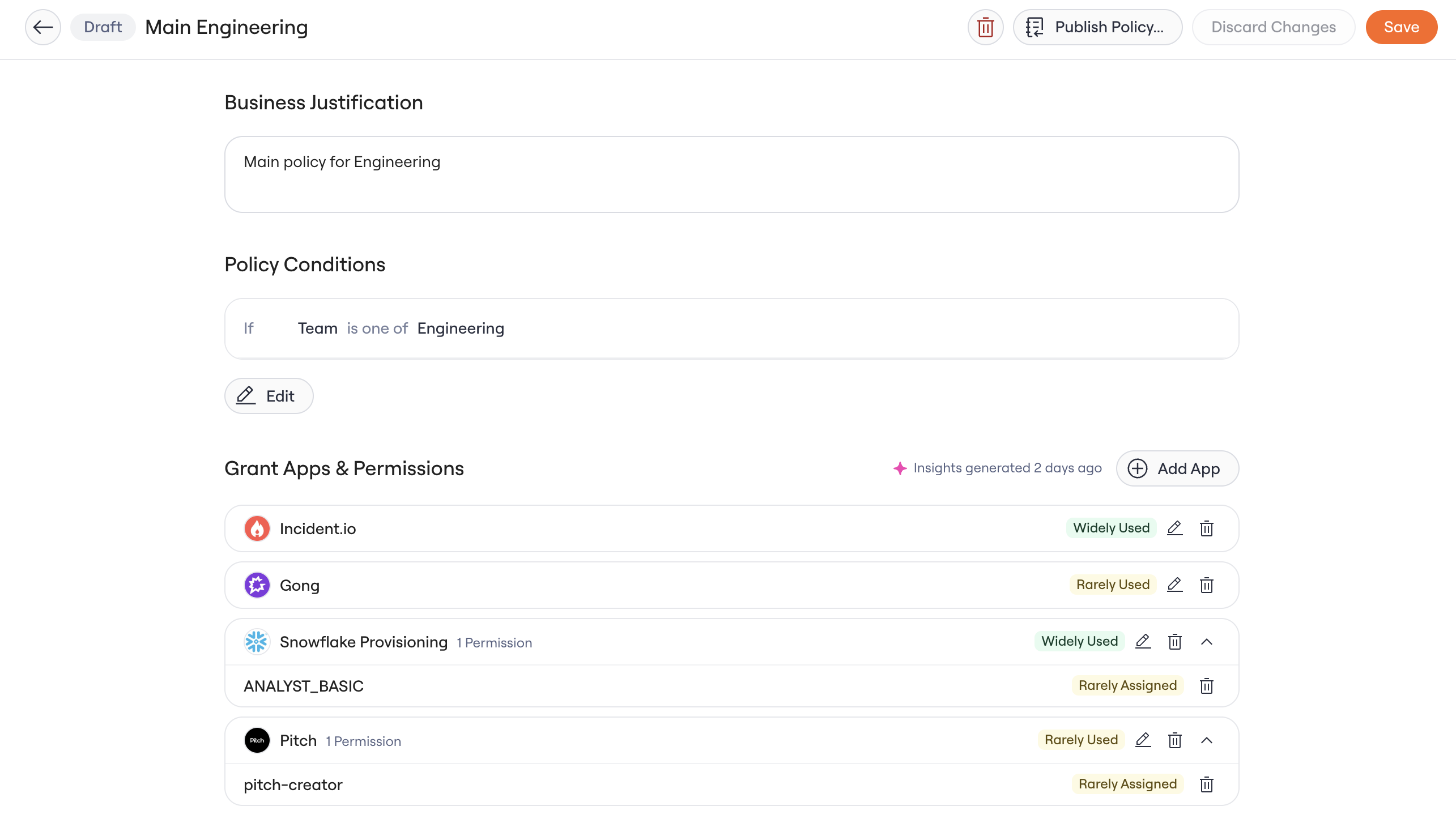
Lumos looks at the identities in scope for the policy and evaluates their assignment and usage. You'll see a single Insight on each app and permission.
Essential Access: marked as birthright in the access matrix.
Rarely Used: fewer than
50%of identities in the policy used it in the last 90 days.Widely Used:
50%or more of identities in the policy used it in the last 90 days.Rarely Assigned: fewer than
80%of identities in the policy are assigned this access.Widely Assigned:
80%or more of identities in the policy are assigned this access.
When Lumos has no signal to compute, you'll see No Data
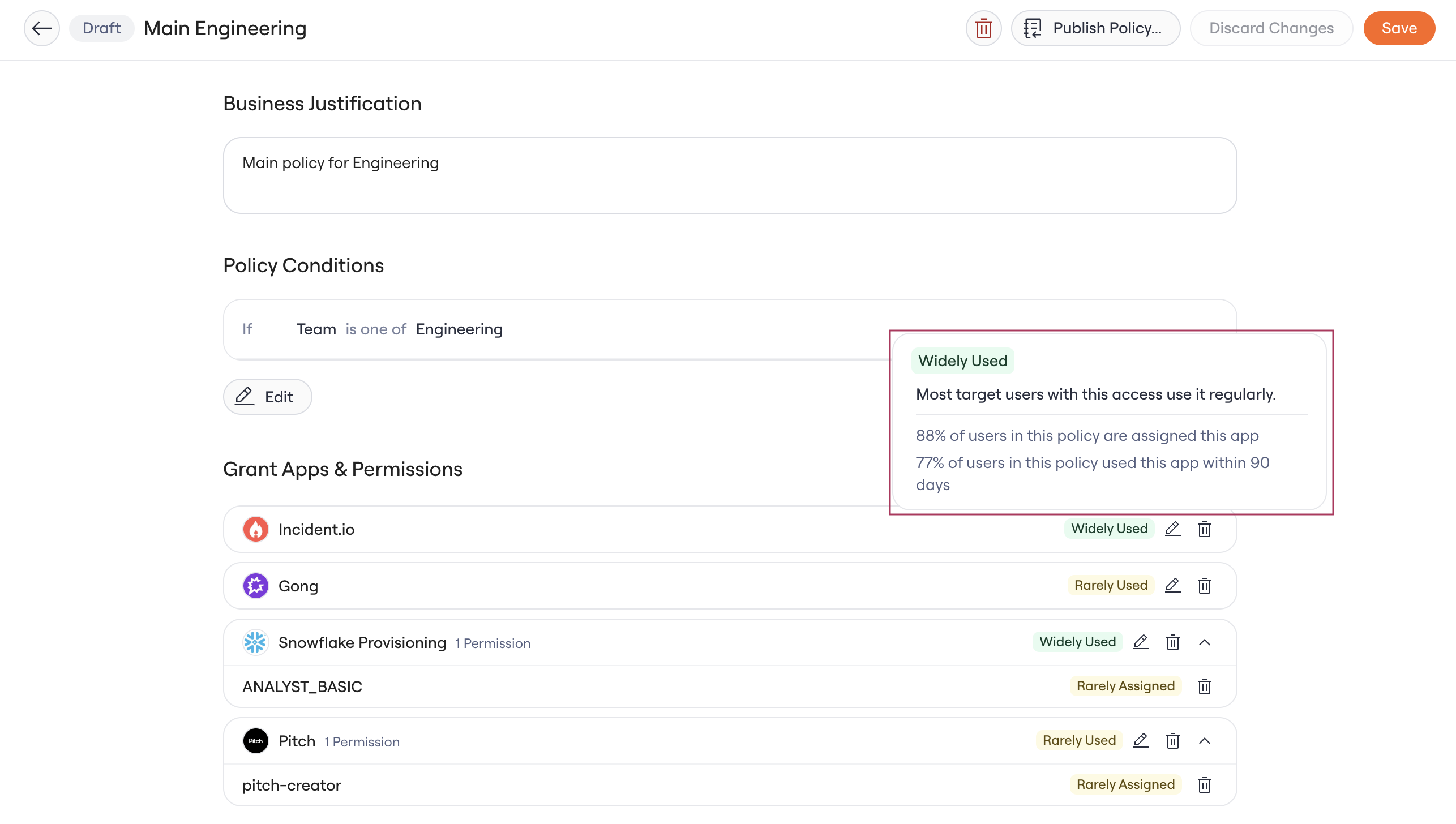
See the detail behind a badge
Hover over any badge to open a popover with the assignment and usage percentages for that app or permission, plus a short explanation. You'll see percentages at both the app and permission level when they're available.
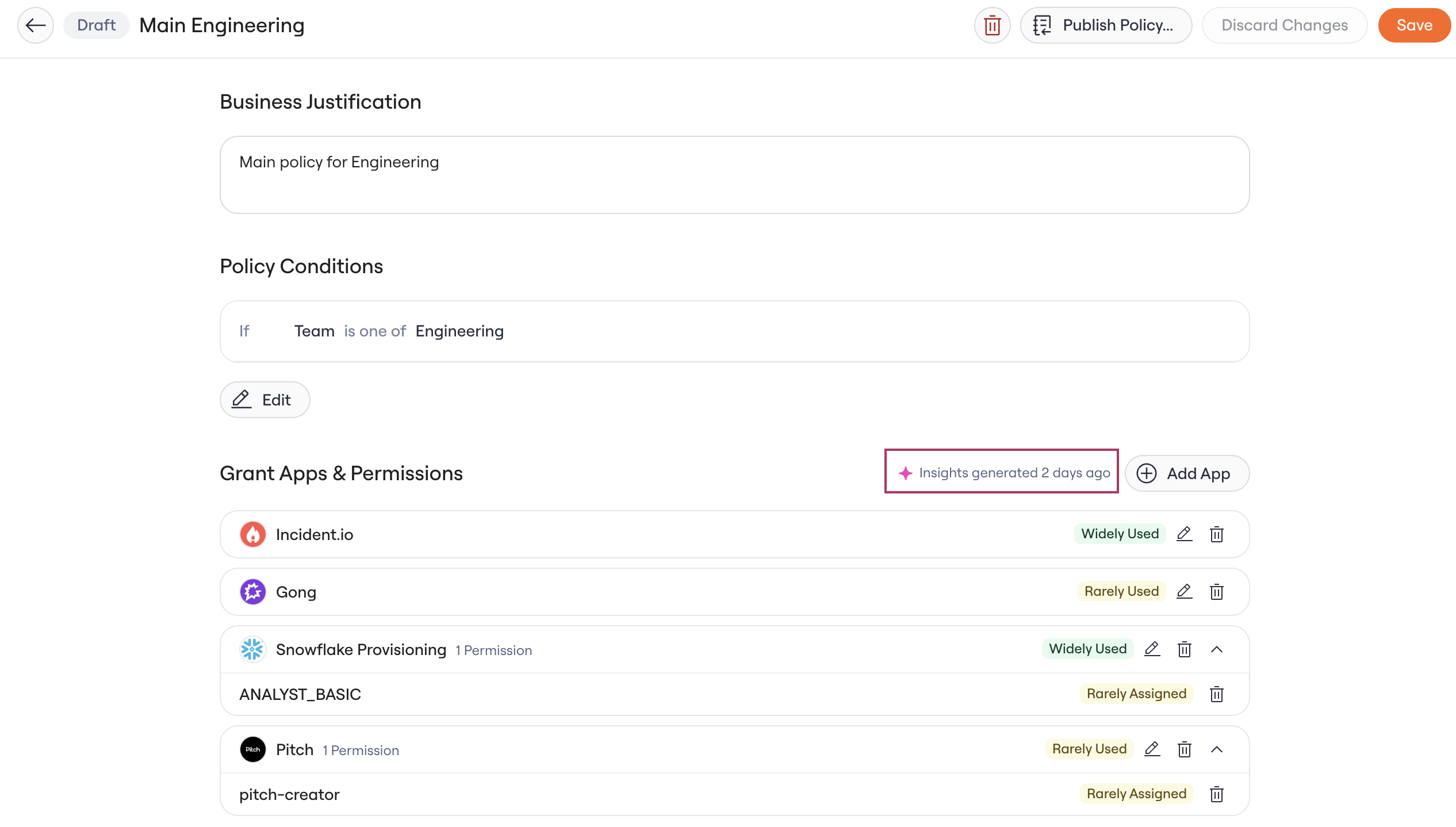
Check the Grant Apps & Permissions section header to see when Lumos last generated insights (for example, Insights generated 2 minutes ago). While a refresh runs, the header shows a generating or refreshing state. If the latest run failed, you'll see a banner in its place.
Data Freshness
Policy Insights refresh:
When a policy changes: you create, edit, or publish it, through the UI or the public REST API.
On a weekly schedule: every 7 days (Sundays at 19:00 UTC).
.