Custom Attributes in Lumos
Last updated: July 22, 2026
Custom Attributes allow you to map and organize additional user information from your integrations into Lumos. By configuring Custom Attributes in the Source of Truth settings page, you can give user-friendly labels to attributes that come from your identity providers and applications, making it easier to organize, filter, and manage your access data.
What Are Custom Attributes?
Custom Attributes are mappings between integration-specific attribute names and user-friendly labels that you define in Lumos. When you connect integrations like Okta, OneLogin, Azure AD, or other identity providers, they may send user attributes with technical names (like countryCode, employeeNumber, or departmentCode). Custom Attributes let you map these technical names to clear, meaningful labels (like “Location”, “Employee ID”, or “Department”) that make sense for your organization.
Key benefits:
✅ User-friendly labels: Transform technical attribute names into clear, understandable attribute names
✅ Consistent organization: Standardize how user information appears across Lumos
✅ Better filtering: Use meaningful attribute names when filtering users, accounts, and entitlements
✅ Access policy creation: Reference Custom Attributes in onboarding rules and access reviews
Where to Configure Custom Attributes
Custom Attributes are configured in the Source of Truth settings page. Navigate to:
Settings → Source of Truth → Custom Attributes section
The Source of Truth page has two sections:
Default Attributes: Pre-configured attributes like Manager, Team, Title, Start Date, and End Date
Custom Attributes: Additional attributes you create to map integration attributes
An app does not have to be listed as a User Source in your Source of Truth to sync Default / Custom Attributes into Lumos
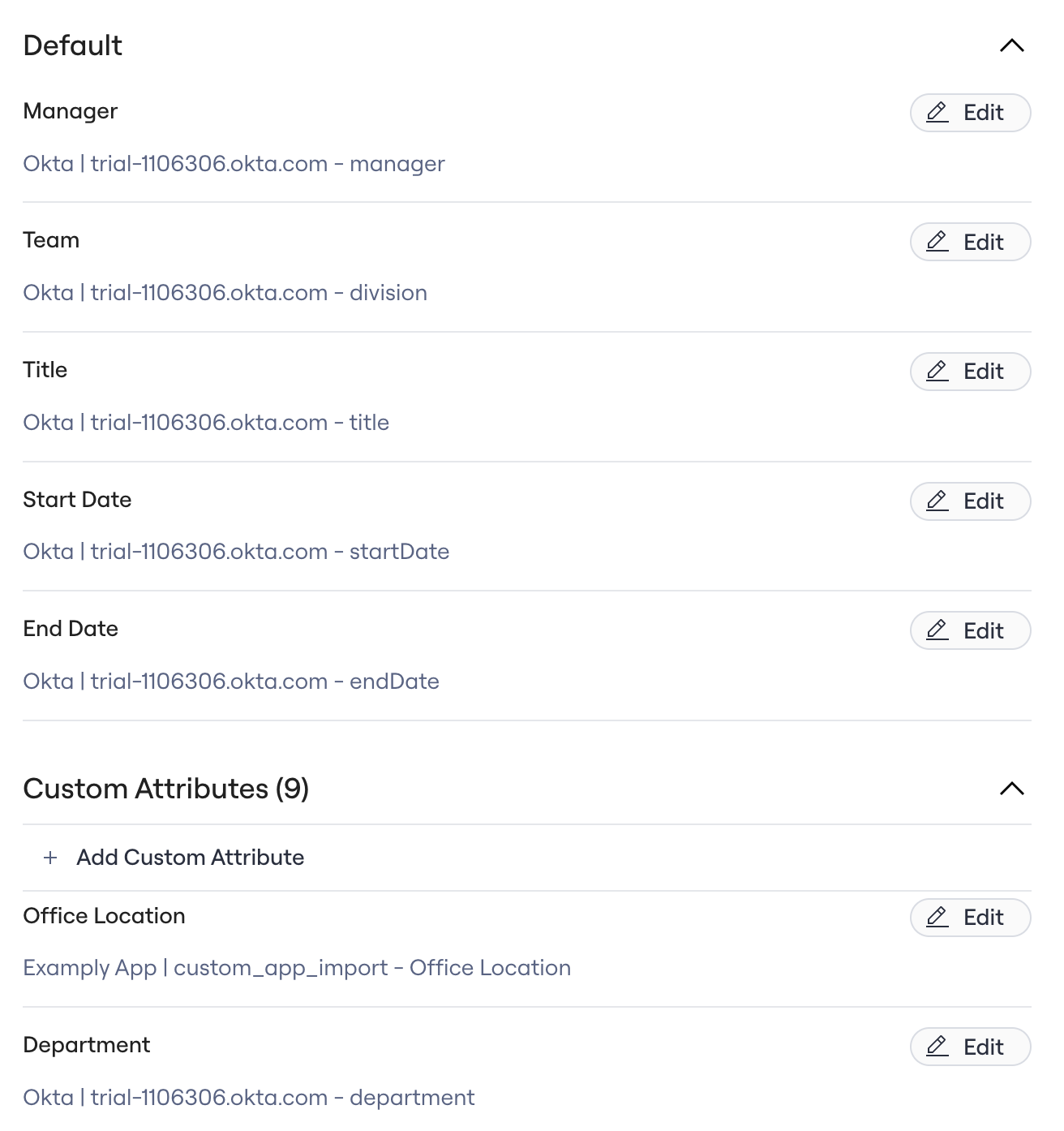
Types of Custom Attributes
When configuring a Custom Attributes in the Source of Truth settings, you can map it to two types of attributes from your integrations:
Text Attributes
Map to text-based attributes from your integrations. These can store any string value like department names, locations, employee IDs, or other text information.
Example: Map the integration attribute countryCode to a Custom Attribute labeled “Location” to display where each user is based.
User Attributes
Map to attributes that reference other users in your organization. These are useful for relationships like managers, team leads, or approvers.
Example: Map an integration attribute that stores manager information to a Custom Attribute labeled “Manager” to establish reporting relationships.
How Custom Attributes Work
Mapping Integration Attributes to Labels
When you create a Custom Attribute:
Choose a label: Give your Custom Attribute a clear, user-friendly name (e.g., “Department”, “Location”, “Employee ID”)
Select the source: Choose which integration provides this attribute
Map the attribute: Select the specific attribute name from that integration (e.g.,
dept,countryCode,employeeNumber)Save the mapping: Lumos will now display this attribute using your custom label throughout the platform
Automatic Syncing
Once configured, Custom Attributes are automatically populated and kept up-to-date from your integrations:
Automatic updates: When your integration syncs, Custom Attribute values are updated automatically
No manual entry: Values come directly from your source system
Consistent data: All users see the same attribute names and values across Lumos
Common Use Cases
Organizing User Information
Map integration attributes to organize your user data:
Department: Map
deptordepartmentCodeto a “Department” Custom AttributeLocation: Map
countryCode,officeLocation, orcityto a “Location” Custom AttributeEmployee ID: Map
employeeNumberorempIdto an “Employee ID” Custom AttributeCost Center: Map cost center codes to a “Cost Center” Custom Attribute
Establishing Relationships
Use User-type Custom Attributes to map organizational relationships:
Manager: Map manager attributes to establish reporting relationships
Team Lead: Map team leadership information for approval workflows
Backup Contact: Map backup or secondary contact information
Filtering and Access Reviews
Once configured, Custom Attributes enable powerful filtering:
Filter users by department to review access for specific teams
Filter by location to audit access for users in specific regions
Filter by employee type or cost center for targeted access reviews
Onboarding and Offboarding Policies
Use Custom Attributes in access policies:
Automatically assign access based on department Custom Attribute values
Grant location-specific applications based on location Custom Attribute
Apply different policies based on employee type or other Custom Attribute values
Within the Lumos Expression Language
Wherever in the Lumos Product the Lumos Expression Language is accessible, Custom Attributes can be accessed within that module. For example:
Set account attributes during Create Account or Update Account workflow steps based on Custom Attributes in the identities
During Send Notification steps to access information about the user that is stored in the Custom Attributes
See the Using the Lumos Expression Language in Workflows for more details.
How to Configure Custom Attributes
Adding a New Custom Attribute
Navigate to Settings → Source of Truth
Scroll to the Custom Attributes section
Click “Add Custom Attribute”
Enter a user-friendly label for your Custom Attribute (e.g., “
Department”, “Location”)Select the integration that provides this attribute
Choose the specific attribute name from that integration
If the attribute references another user, indicate it’s a User-type attribute
Save your configuration
Editing or Deleting Custom Attributes
Edit: Click on an existing Custom Attribute to change its label or source mapping
Delete: Remove a Custom Attribute if it’s no longer needed (this won’t delete the underlying data)
Best Practices
Naming Your Custom Attributes
Use clear, descriptive names that your team will understand
Be consistent with naming conventions across your organization
Avoid abbreviations unless they’re widely understood
Consider how the attribute will appear in filters and reports
Choosing the Right Source
Select the integration that is the most reliable source for this information
If multiple integrations provide the same attribute, choose the one with the most accurate data
Consider which integration syncs most frequently
Data Quality
Ensure your source integration has clean, consistent data
Regularly verify that Custom Attribute values are syncing correctly
Review Custom Attribute values as part of your access review process
Examples in Action
Example 1: Mapping Department Information
Your HR system (connected via Okta) stores department information in an attribute called dept. You want to display this as “Department” throughout Lumos:
Go to Settings → Source of Truth → Custom Attributes
Click “Add Custom Attribute”
Enter label: “Department”
Select source: Okta
Select attribute:
deptSave
Now, all users will have a “Department” Custom Attribute showing their department from Okta, and you can filter and organize users by department throughout Lumos.
Example 2: Mapping Location for Access Policies
Your identity provider stores office location in countryCode, and you want to use this for location-based access policies:
Create a Custom Attribute labeled “Location”
Map it to the
countryCodeattribute from your identity providerUse this Custom Attribute in onboarding rules to automatically grant location-specific access
Example 3: Establishing Manager Relationships
Your integration provides manager information in a managerEmail attribute:
Create a Custom Attribute labeled “Manager” as a User-type attribute
Map it to the
managerEmailattributeThis establishes manager relationships that can be used in approval workflows and access reviews
Example 4: To set account attributes during a Create Account workflow step
Your integration may provide Lumos the ability to set an account attribute when Lumos creates the account in the end system. For example, when creating an Entra account, Lumos gives the ability to set the Employee ID attribute in the Entra account. To do this you can use the a Lumos Expression like the following:
user.custom_attributes['Employee Number'] if user.custom_attributes.get('Employee Number') else DO_NOT_SETSee the Using the Lumos Expression Language in Workflows for more examples on how to use Custom Attributes within the Lumos Expression Language.
Getting Help
If you need assistance with Custom Attributes:
Check your integration documentation to see what attributes are available
Review the Source of Truth settings page to see available attributes from your connected integrations
See Using the Lumos Expression Language in Workflows for more information on using Custom Attributes within the Lumos Expression Language
Custom Attributes are a powerful way to make integration data more accessible and useful in Lumos. By mapping technical attribute names to clear, user-friendly labels, you can better organize your user information, create more effective access policies, and run more targeted access reviews.