[Archived] Connecting Zoom
Last updated: December 10, 2025
This article applies only to Zoom connections created before July 2025.
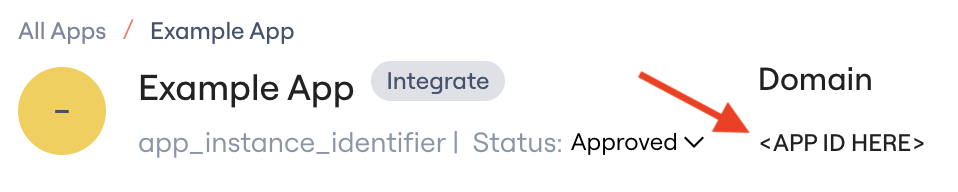
To check which version you’re using, look at the Domain ID under your domain:
If the domain name shows
zoom_ics, proceed with instructions in this article.If it shows
zoom.com, continue with the steps below.
After this article...
You'll be able to connect the Zoom integration to Lumos and resolve common issues that arise when connecting.
Required plan & roles
You need at least the Zoom Pro plan to connect this integration.
Your Zoom user needs to be the Workspace Owner to connect this integration.
Scopes
The Zoom integration will ask for the following scopes via OAuth during setup.
Scope | Default | Read-Only | Description |
✅ | ✅ | Enables us to check the latest meeting the user had using their license (this populates the Last Activity column. | |
✅ | ❌ | Enables us to view & manage user roles. This allows you to use Lumos to upgrade/downgrade Zoom permissions during permission reviews. | |
❌ | ✅ | Get meeting reports. | |
✅ | ❌ | Used to manage Zoom user data. | |
❌ | ✅ | Get user settings. | |
❌ | ✅ | View a user. | |
❌ | ✅ | List users. |
Instructions
Default
1. Find the Zoom card in your Lumos integrations (Reconnect or add new)
2. Click Connect Zoom.

3. Click the Allow Access button in Zoom to finish connecting the integration.
4. [Optional] If your company requires Zoom apps to be approved, you'll need to also follow the Zoom instructions for approving Unlisted Apps to connect the integration.
Read-Only
A video overview of how to connect the Zoom read-only integration can be found below!
1. Sign into Zoom with a user that has Workspace Owner privileges.
2. Visit the Zoom applications page in your Zoom Admin portal and select Develop > Build App. When prompted, select OAuth as the application type, select and save the Admin-managed app option, and deselect the option to publish to the Zoomapp marketplace.
3. On the next page, you'll be prompted to fill in a number of fields. Use the following values to create your app.
Redirect URL for OAuth: https://app.lumosidentity.com/integrations/zoom_readonly_oauth2_callback
OAuth allow list: https://app.lumosidentity.com/integrations/zoom_readonly_oauth2_callback
4. The last thing you'll need to do in Zoom is choose which scopes to grant to Lumos. You can do this by visiting the Scopes tab for the app you created and clicking Add Scopes. Below are the scopes that you'll need for the full platform to work:
user:read:list_users:admin
user:read:user:admin
user:read:settings:admin
report:read:user:admin
5. Once you've granted access to the scopes you need, return to the App Credentials tab in Zoom and temporarily save the following values to use in Lumos.
Client ID: Used to authenticate via OAuth into your recently created app. You can find it on the App Credentials tab.
Client Secret: Used to authenticate via OAuth into your recently created app. You can find it on the App Credentials tab.
6. Find the Zoom card in your Lumos integrations. (Reconnect or add new)
7. Paste the Client ID and Client Secret from Zoom into the corresponding fields in Lumos.
8. Click Connect Zoom to finish connecting the integration.

Troubleshooting
Zoom shows an error message saying "You cannot authorize Lumos".
Problem: The Zoom account you're using to connect the integration isn't a Workspace Owner, or your company requires Zoom to be approved as an app.
Solution: Reconnect the Zoom integration with the Workspace Owner account. If your company requires Zoom apps to be pre-approved, follow step 4 in the instructions above.