Reviewing User Account Access In Lumos
Last updated: April 29, 2026
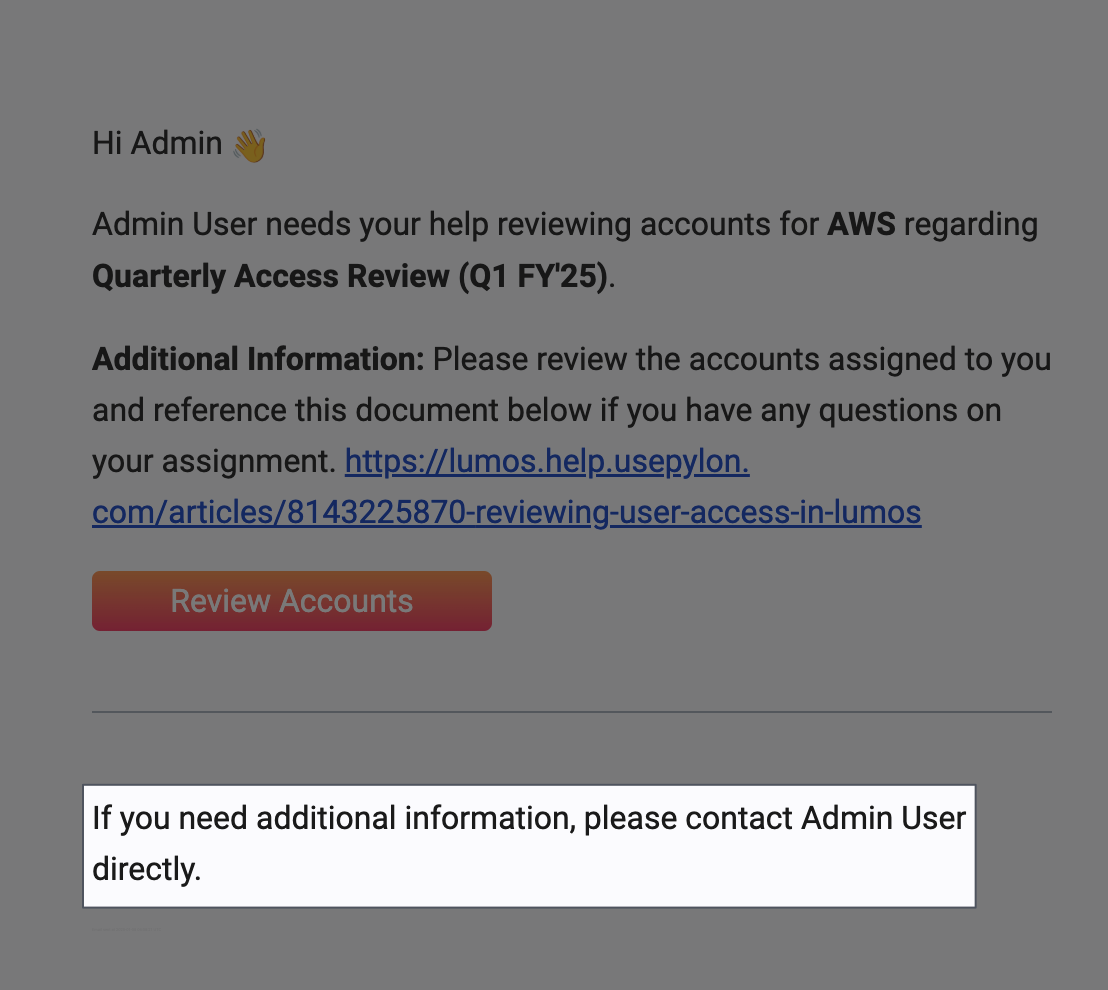
You’re probably reading this because you got a message about reviewing user access for some of your company's apps.
Your company uses Lumos to help employees keep access to software they need.
Use this guide to quickly finish your review and help your company stay secure! 🔒
1. Go to your access reviews in Lumos
If you got a notification, click the button there to start your review!
If you need to sign in, use your Single Sign On (SSO) login ID or email.
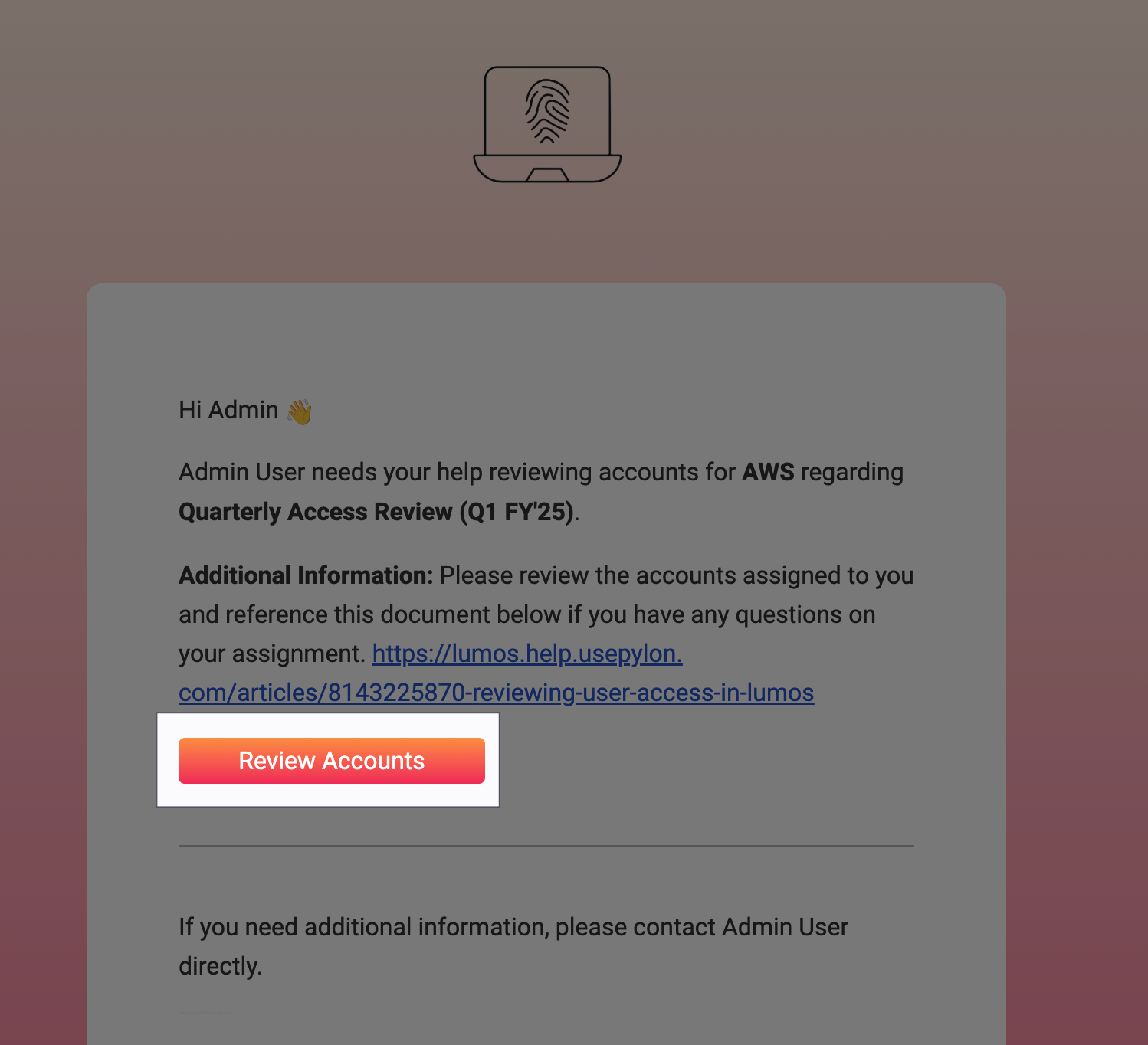
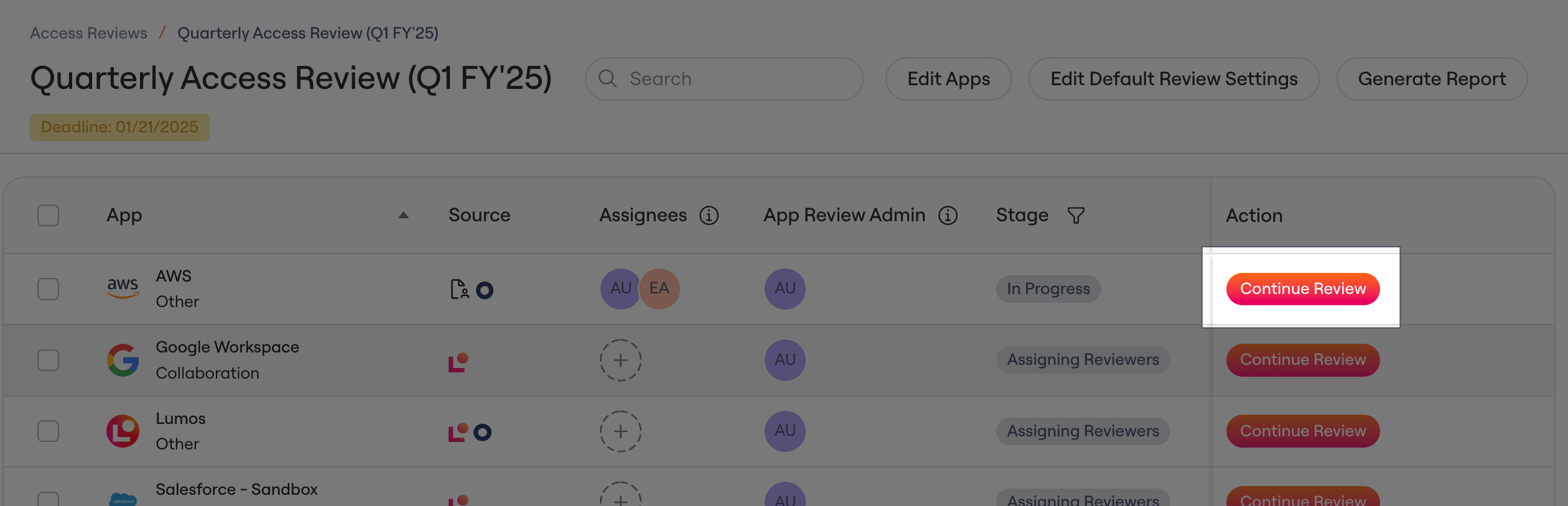
2. Click "Continue Review" for an app to start a review
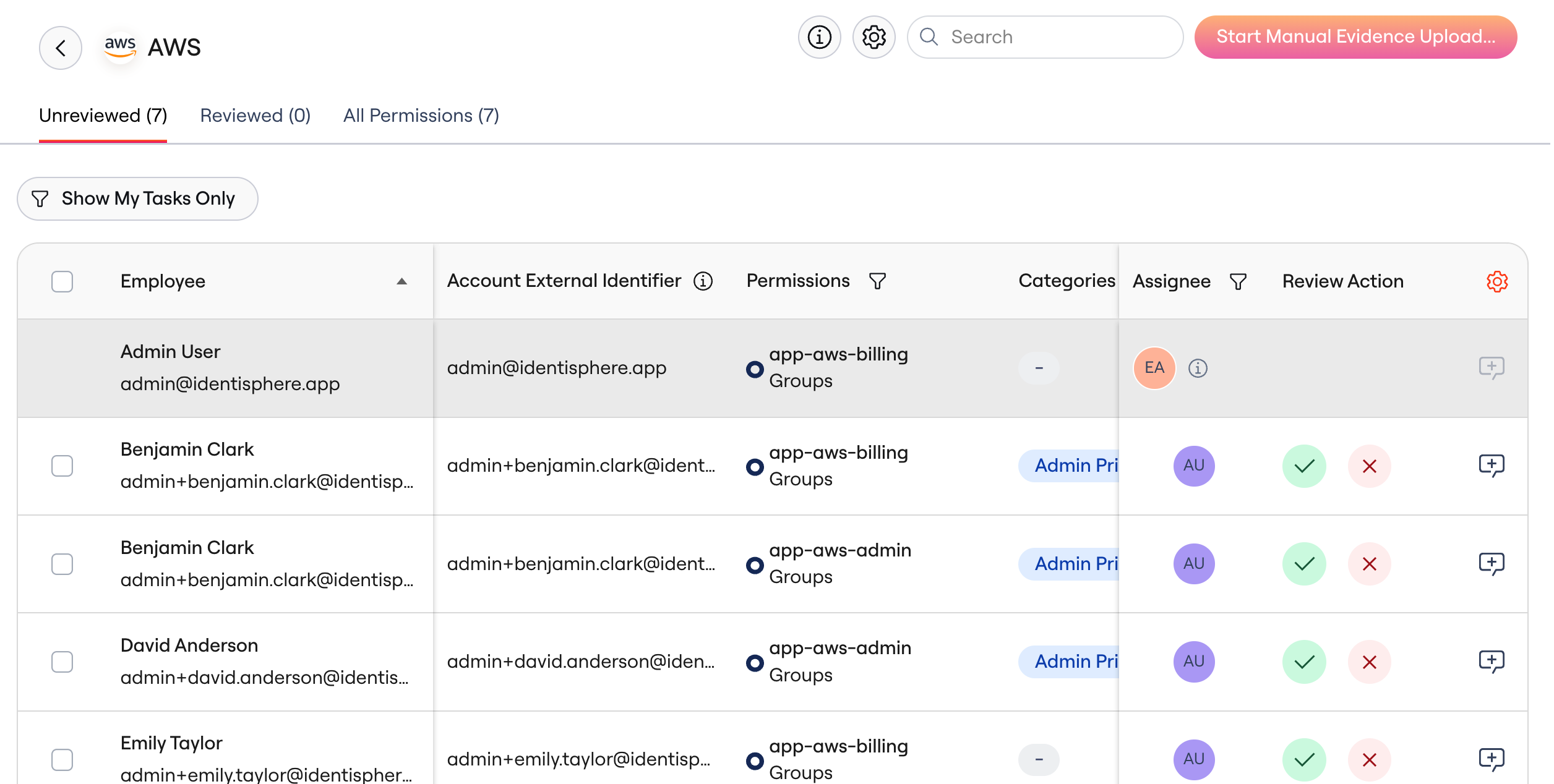
3. Review the line items assigned to you
Below are some FAQs you might have about the review process.
How do I see all of the columns in the table?
Scroll to the right, and they'll display as expected!
What am I supposed to be reviewing?
Permissions: If you see a Permissions column in the table, each row represents a specific role or app group to which the employee is assigned. You'll decide whether they should still have it.
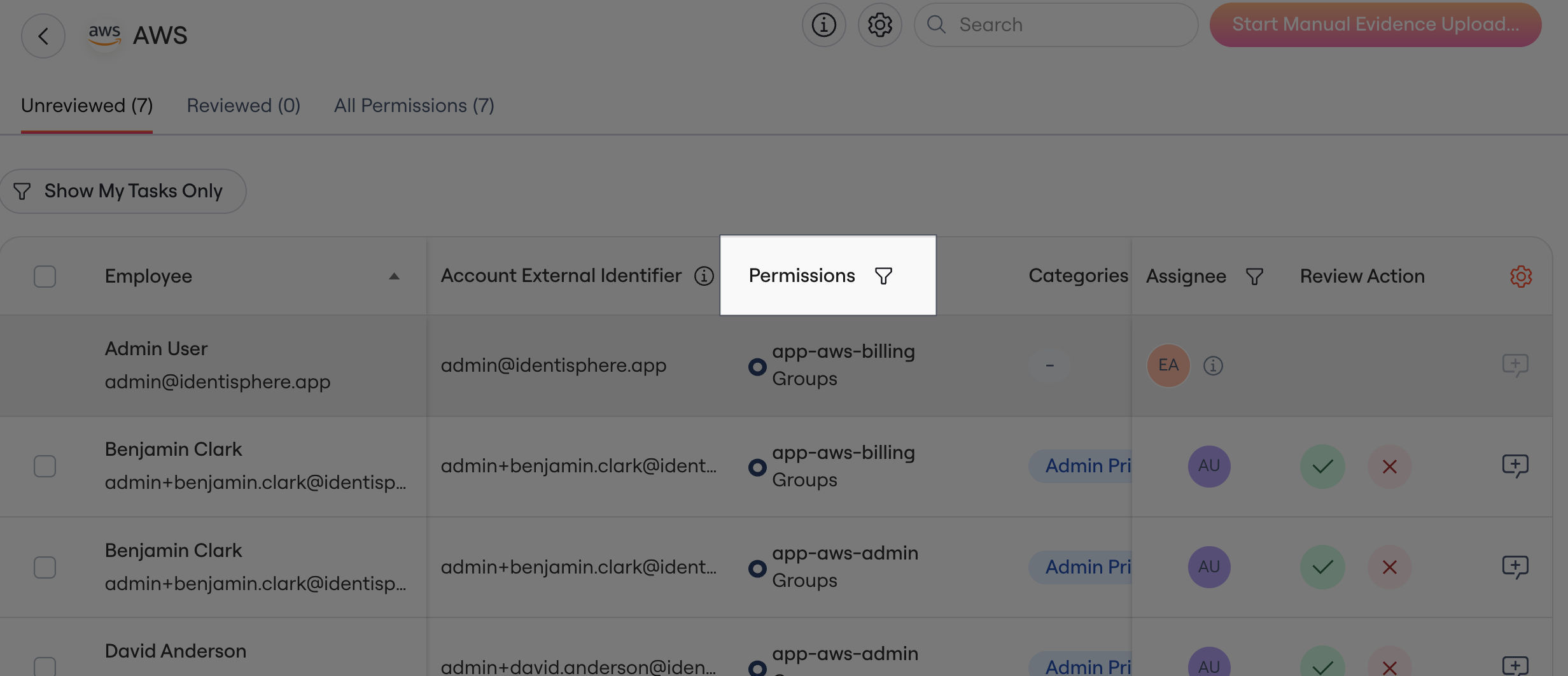
Accounts: In this case, you're reviewing the employee's access to an app as a whole.
What does each column mean?
The data for each access review can differ by app, but there are some columns that are useful in all reviews.
Employment Status: If the user is still actively working at your company.
Last Login: The last time the employee logged into the app.
Groups: App-specific groups assigned to the user, revealing more insight into their access level and needs.
Categories: More info on the Categories column can be found in the FAQ below!
What do the values in the Categories column mean?
Admin Privileges - This means the user likely has some kind of "admin" access to the app. Review carefully!
Terminated - The employee is no longer with your company.
Service Account - We detected that the account is a system/service account in the app.
Unmatched - The account isn't linked to an employee. Usually these are guest accounts, system/service accounts, or contractor accounts. Review them carefully!
See 📄 Understanding Categories in the Access Review for more details.
What if something shouldn't have been assigned to me?
Contact the team or employees mentioned in your initial notification.
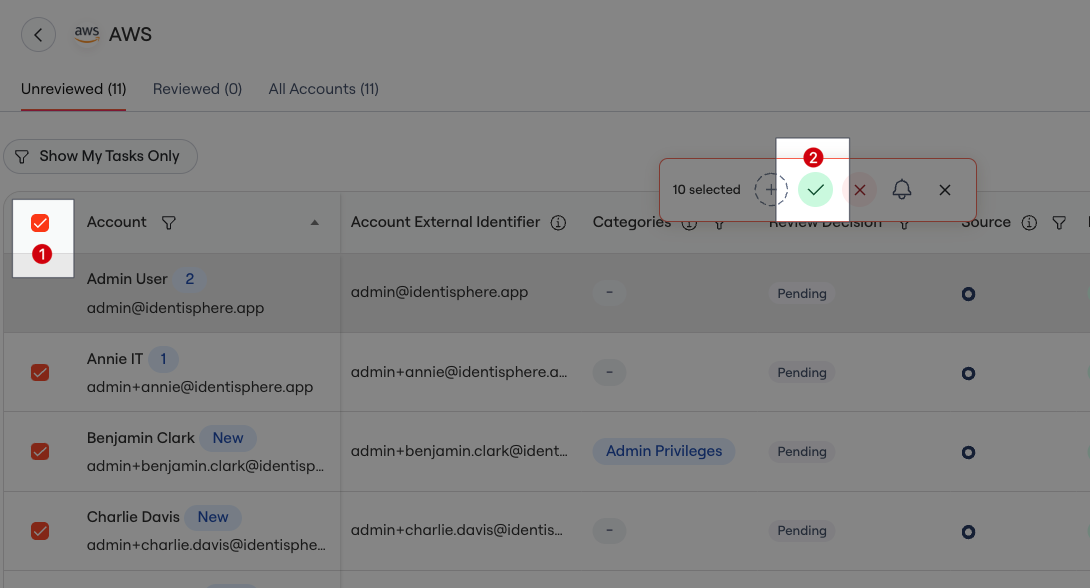
4. Approve or reject the accounts assigned to you.
You can approve or reject multiple lines at once!
Read on below to learn a speedy, yet thorough, workflow.
As you review your tasks, we recommend the following workflow:
Scan over all your assigned accounts and click the ❌ in the Review Action column if any access should not be kept -- don't worry about approving yet.
Choose Reject if their access should be removed completely.
Choose Modify if the access should be adjusted, not fully-removed.
After rejecting any access, select the checkbox in the table's top-left corner, click Select All for the remaining line items, then use the ✅ in the pop-up to approve the remaining items.
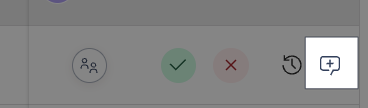
You can also add a note for any line item to add context for auditors.
5. Repeat for all your assigned apps & you're done! 🎊
Your identity and compliance teams thank you for helping keep your company secure!