Reviewing an Access Policy as a Policy Reviewer
Last updated: August 4, 2026
You're probably reading this because someone shared an access policy with you in Lumos and asked you to look it over.
Your company uses Lumos to grant employees the apps and permissions they need automatically. An access policy defines that access for one group of employees: who is covered, and what they get.
You were asked because the policy hands out access you are responsible for. Maybe you own a group it grants, administer one of the apps, or review access for your security team. Use this guide to finish your review in about ten minutes.
1. Open the policy from the link you were sent
Lumos does not yet send a notification when a policy is shared with you, so whoever shared it will send you a link. If you need to sign in, use your Single Sign-On (SSO) login or email.
The policy is read-only for you. You can view it and leave comments. You cannot change the access, rename the policy, publish it, or share it with anyone else, so nothing breaks while you look around.
2. Read what the policy grants
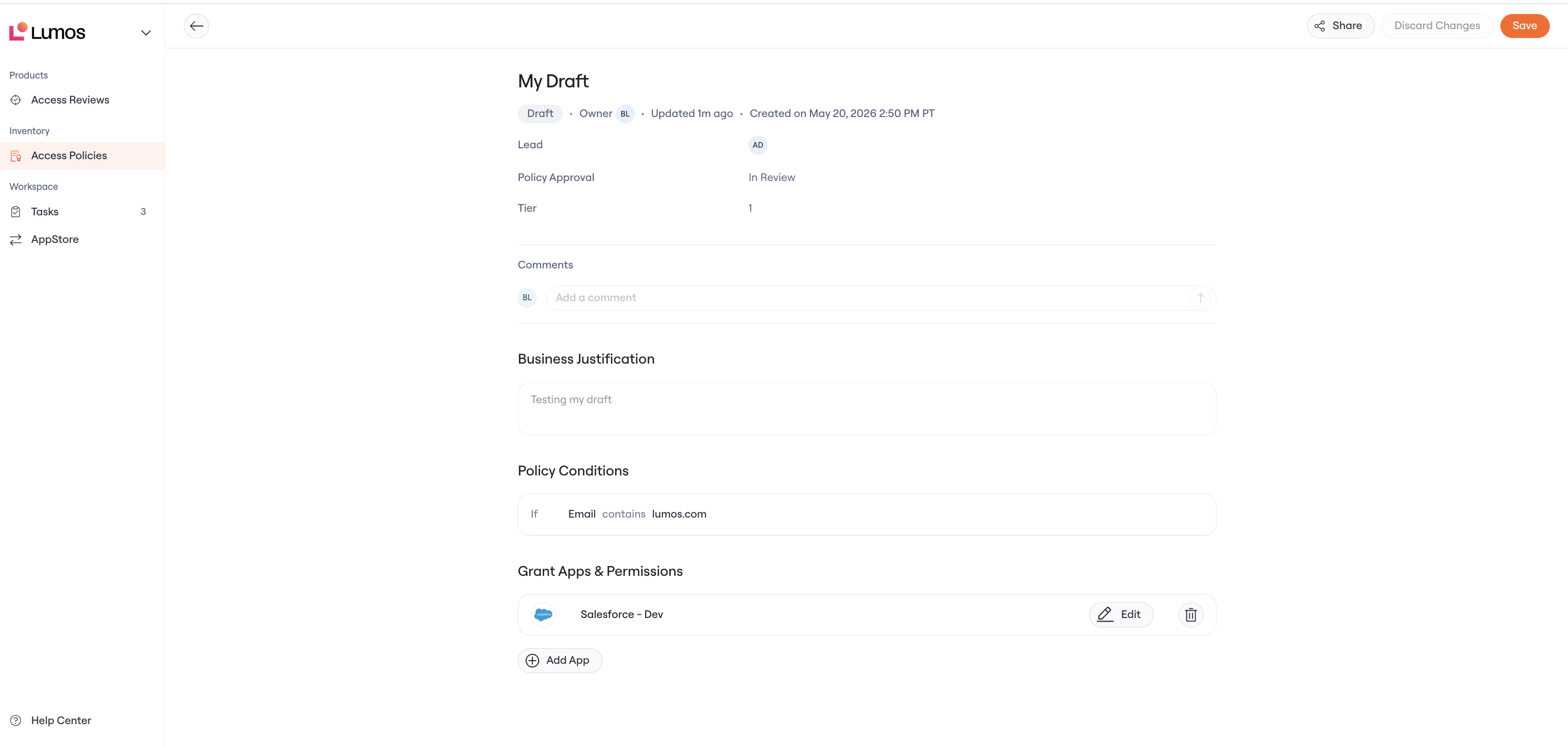
Three sections tell you everything you need:
Policy Conditions: who the policy covers. For example, everyone whose email is on your company domain, or everyone on a specific team.
Business Justification: why the policy exists, written by the team that owns it.
Grant Apps & Permissions: the apps, groups, and roles the covered employees get automatically. This is the part you are reviewing.
3. Answer one question for each grant
Should this policy be handing out the access you are responsible for? A few checks that make it quick:
Does everyone the policy covers really need this app or permission?
Is the permission level right, or is it more than the job requires?
Is there anything that should be requested case by case instead of granted automatically?
4. Leave your verdict as a comment
Comments are how your review is recorded.
If something should change, say what and why. Your comment is what the admin team acts on.
If the policy is right as it stands, say that too. A silent review looks like an unfinished one.
The policy owner records your sign-off on the policy, and the admin team makes any changes you asked for. Your comments stay attached, so the reasoning is still there at the next review.
5. You're done 🎉
Your identity team thanks you for helping keep access accurate and your company secure.
FAQ
Why can't I edit the policy? Sharing is view and comment only. If you should be editing the apps and permissions yourself, ask your admin team to make you a policy owner instead.
Will I be notified when someone replies to my comment? Not yet; notifications are planned. Check back on the policy link, or ask the person who shared it with you.
I'm not the right person to review this. What now? Leave a comment naming who is, or reply to whoever shared it with you. Admins and policy owners can share the policy with the right reviewer in a few clicks.