Send Custom Notifications in Workflows
Last updated: October 22, 2025
Background
Managing onboarding, offboarding, and access requests involves a lot of moving pieces, and it's easy for important communications to fall through the cracks.
With Lumos' Send Notification workflow step, you can automatically send customized messages to the right people at the right time. Use it to:
Welcome new employees on their first day
Keep cross-functional teams in the loop during onboarding or offboarding
Alert security or IT teams when users gain access to sensitive resources
Guide users with custom instructions after they're provisioned to new applications
Configuring the Step
1. Edit your Workflow
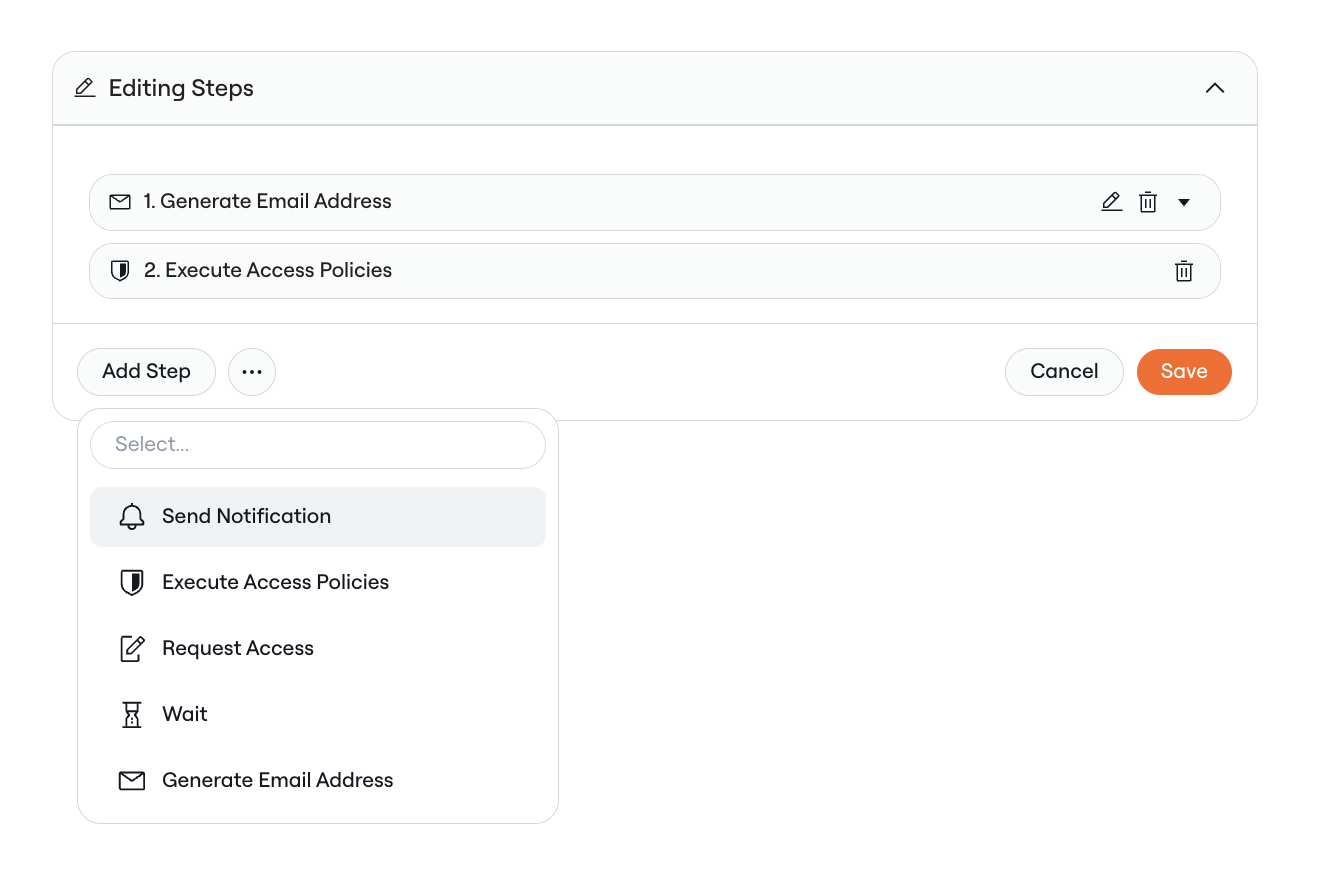
Navigate to the workflow you want to enhance (onboarding, offboarding, mover workflows, or AppStore workflows), enter edit mode, and click "Add Step". Select the "Send Notification" step from the list of available steps.
2. Add a Subject
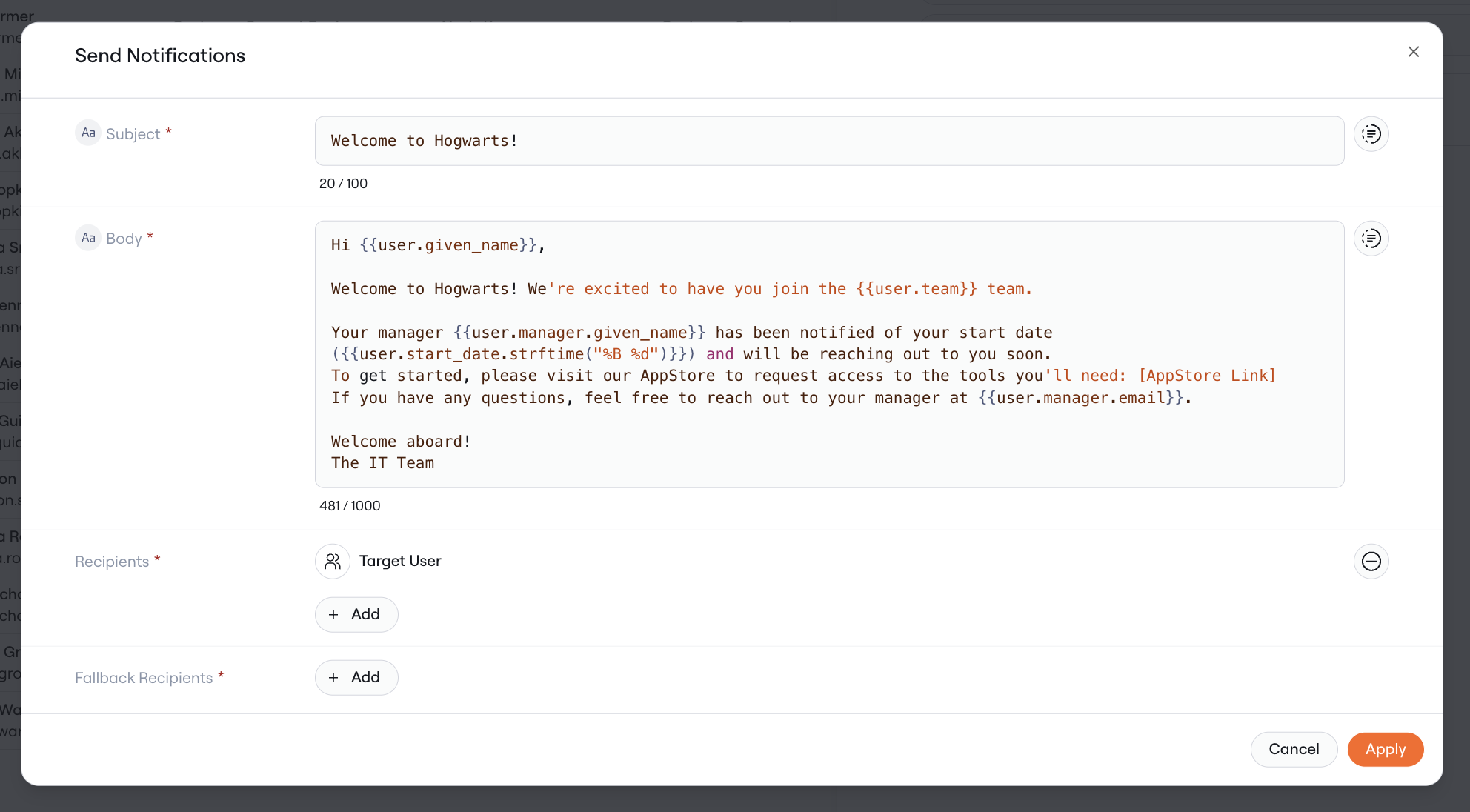
Enter a clear, descriptive subject line in the Subject field. This will appear as the email subject line and at the top of Slack or Teams messages.
Examples:
"Welcome to [Company Name], {{user.given_name}}!"
"New hire {{user.given_name}} {{user.family_name}} starting {{user.start_date}}"
"🚨 New user granted access to sensitive data: {{user.given_name}} {{user.family_name}}"
3. Craft Your Message Content
Use the Body field to write the content of your notification. This is where you can provide detailed information, instructions, or welcoming messages.
4. Configure Recipients
The recipients field specifies who a notification is sent to. Depending on the workflow you are editing, you will be able to select any of the following:
Individual Users — Select specific people by name or email who have identities in Lumos
Groups — Send to entire teams or departments
Target User — The employee being onboarded, offboarded, or provisioned
Manager — The target user's direct manager
Make sure to specify a fallback recipient. This will be used if the chosen recipient is based on the target user (e.g. manager, director), and that field isn't specified for a particular user.
5. Save and Test Your Notification
Click "Save" to add the notification step to your workflow!
We recommend testing your workflow with a sample user to ensure your notifications are formatted correctly and being sent to the right recipients.
Customizing Messages
If you would like to personalize the message that is sent, you can take advantage of Lumos' Template Language in both the subject and body fields.
This has all the same functionality as the Expression Language, but preserves whitespace and formatting as well. Make sure to surround expressions using double curly braces {{}} in order for dynamic fields to render properly.
Available expressions include:
{{user.given_name}}— the employee's first name{{user.family_name}}— the employee's last name{{user.full_name}}— the employee's full name{{user.email}}— the employee's email address{{user.team}}— the employee's team
{{user.start_date}}— the employee's start date{{user.manager.given_name}}— the manager's first name{{user.manager.email}}— the manager's email address
Example notification content:
Hi {{user.given_name}},

Welcome to [Company Name]! We're excited to have you join the {{user.team}} team.

Your manager {{user.manager.given_name}} has been notified of your start date ({{user.start_date}}) and will be reaching out to you soon.
To get started, please visit our AppStore to request access to the tools you'll need: [AppStore Link]
If you have any questions, feel free to reach out to your manager at {{user.manager.email}}.

Welcome aboard!
The IT Team
Common Use Cases
New Employee Welcome Message: Send a personalized welcome message to new hires with links to important resources and next steps.
Manager Pre-Provisioning Alert: Notify managers about their new hire's upcoming start date and invite them to request additional access in advance.
Coordination Notifications: Alert your team or cross-functional partners about onboarding tasks that need to be completed before an employee's start date.
Application Onboarding Guidance: After provisioning a user to a new application, send custom instructions on how to get started with the tool.
Offboarding Confirmations: Keep relevant stakeholders informed about completed offboarding steps and any manual actions required.
FAQs
Which notification channels will be used?
Notifications are sent using the channels configured in your global notification settings. This step supports email, Slack, Teams, or any combination based on your organization's preferences.
What happens if a referenced attribute doesn't exist?
If you reference an attribute that doesn't exist for a particular user (like {{user.manager.given_name}} for a user without a manager), the expression will be left blank rather than causing an error.
If you specify a recipient using a dynamic field such as manager, and that user does not have a manager assigned upon the workflow running, the notification will be sent to whoever is specified as a fallback recipient.
Can I send different notifications to different recipients in the same workflow? Absolutely! You can add multiple Send Notification steps to the same workflow, each with different recipients, subjects, and content.
How do I know if my notifications were sent successfully?
Notification delivery status is tracked in your workflow execution logs. You can view these logs to confirm successful delivery or troubleshoot any issues.
Other Questions?
Let us know by reaching out via support@lumos.com or discussing directly with your CSM!