[Archived] Connecting Salesforce
Last updated: December 8, 2025
This article applies only to Salesforce connections created before July 2025.
To check which version you’re using, look at the Domain ID under your domain:
If the domain name shows
salesforce.com, continue with the steps below.
If it shows
salesforce_ics, proceed with instructions in this article.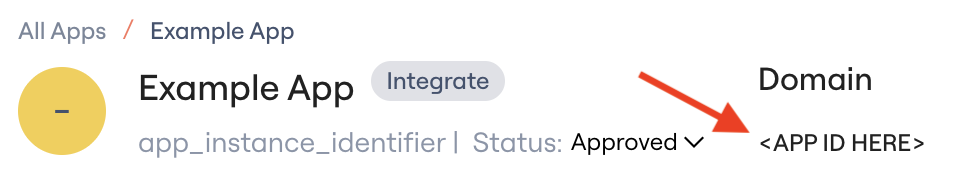
After this article...
You'll be able to connect the Salesforce integration to Lumos and resolve common issues that arise when connecting.
Required plan & roles
There's no minimum plan required to connect the Salesforce integration.
Your Salesforce user needs the following permissions to connect the integration.
Customize ApplicationAND one of eitherModify All DataORManage Connected Applications
Manage Profiles and Permission SetsFor Sandbox instances:
PermissionsManageUsersANDPermissionsViewAllUsers
If you want to use Lumos to provision access to Salesforce profiles or permission sets, then Modify All Data is required. See Configuring Salesforce Provisioning
If you are connecting a Salesforce sandbox instance, PermissionsManageUsers and PermissionsViewAllUsers are required to pull user entitlements
Instructions
If you want Lumos to filter out community/portal users from your Salesforce syncs, please let us know and we can enable a setting that removes these from our Salesforce API calls.
Production
1. Find the Salesforce card in your Lumos integrations (Reconnect or add new)
2. Choose the "Production" option in the dropdown.

3. Log into your production Salesforce tenant and accept the requested scopes to complete the connection.
Sandbox
1. Find the Salesforce card in your Lumos integrations (Reconnect or add new)
2. Choose the "Sandbox" option in the dropdown.

3. When you get to the Salesforce authentication screen, click the "Use Custom Domain" link.
Your browser may "remember" which Salesforce you were logged into and not show this option, so you may need to do this in a different browser or a private browsing session.

4. Key in the subdomain of your Salesforce sandbox tenant.
5. Sign into your Salesforce sandbox and accept the requested scopes to complete the connection.
Scopes
Our Salesforce integration requires the following scopes to view and manage your users.
Since the full scope encompasses all permissions of the user connecting the integration, the user connecting the integration needs permission to do the following:
Required: View all users & entitlements
For user management: Manage all users
For advanced functionality, optional: View and modify accounts, opportunities, and tasks
Scope | Required | Description |
full | ✅ | Allows access to all data accessible by the logged-in user, and encompasses all other scopes. |
refresh_token | ✅ | Allows a refresh token to be returned when the requesting client is eligible to receive one. With a refresh token, the app can interact with the user’s data while the user is offline. |
offline_access | ✅ | This token is synonymous with requesting refresh_token. |
Troubleshooting
I can't connect the Salesforce integration.
Make sure that your Salesforce user is a System Administrator and that you're logged into the correct Salesforce environment.
I am trying to connect my sandbox environment but am being prompted with the URL https://login.salesforce.com/ after clicking connect. How do I use my custom domain?
Click the "Use Custom Domain" in the bottom right of the popup box. This will enable you to select your company's sandbox domain and complete setup.