[Archived] Connecting GitHub
Last updated: December 16, 2025
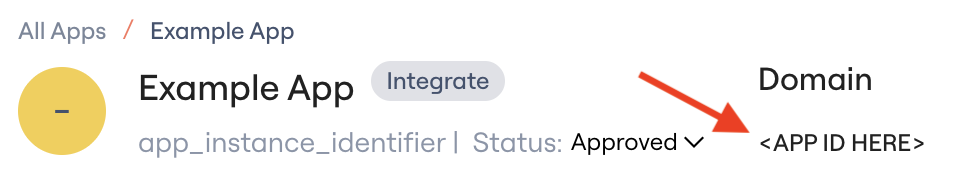
This article applies only to GitHub connections created before September 2025. To check which version you’re using, look at the Domain ID under your domain:
If the domain name shows
github.com, continue with the steps below.If it shows
github_ics, proceed with instructions in this article.
After this article...
You'll be able to connect the GitHub integration to Lumos and resolve common issues that arise when connecting.
Required plan & roles
There's no minimum plan required to connect the GitHub integration.
Your GitHub user needs to be an Administrator to connect this integration.
We don't currently support on-premise GitHub instances.
Scopes
When connecting GitHub, we ask for the following scopes via OAuth.
More info on the scopes can be found in GitHub's documentation.
Scope | Required | Description |
admin:org | ✅ | Fully manage the organization and its teams, projects, and memberships. |
repo | ✅ | Grants full access to public and private repositories including read and write access to code, commit statuses, repository invitations, collaborators, deployment statuses, and repository webhooks. |
Instructions
1. Find the GitHub card in your Lumos integrations (Reconnect or add new)
2. Get the name of your GitHub organization from your URL (ex. https://github.com/lumosapp has the organization name "lumosapp")
If you're using GitHub Enterprise, you cannot use the name of your Enterprise organization! You must use the name of the organization(s) that roll up to your enterprise.
3. Enter the GitHub organization name into the Organization Name field in Lumos.

4. Click Connect Github in Lumos and authorize the connection in GitHub.
Troubleshooting
I can't connect the GitHub integration.
Make sure that your GitHub user is an Administrator in your GitHub organization and that your credentials are correct.
Lumos doesn't currently support on-premise GitHub tenants.