Access Requests in Microsoft Teams
Last updated: July 29, 2026
Background
Lumos now delivers access request notifications and actionable tasks directly in Microsoft Teams. Approvers can review and act on approval tasks from an adaptive card in Teams. Assignees can view and complete manual provisioning tasks the same way. Every task that appears in Teams stays reachable and actionable in the Task Center, so your audit trail and system of record don't change.
See Setting Up Microsoft Teams
When to use this
Your organization runs on Microsoft 365 and Teams. Approvers act on requests in the tool they already have open, instead of email or the Lumos UI.
Approvals are your bottleneck. Requests stall when approvers have to switch tools. Adaptive cards in Teams put the decision one click away.
IT fulfills manual provisioning in Teams. Manual tasks surface as cards, so the fulfilling team sees and completes them without leaving their channel.
You run a mixed Slack and Teams environment. Notification Preferences are set per domain, so you can route notifications to the right chat tool for each part of your org.
What appears in Teams
Notifications. Lumos delivers the full access request notification catalog to users in Teams, including:
Request creation and approval asks
Approvals, denials, cancellations, comments, completions, and expirations
Provisioning and deprovisioning status, and provisioning errors
Access about to expire and access removal notices
Escalation policy reassignment notifications
Edge cases such as
Manager Not Found,No Approvers Found, and inactive group or user assignmentsCustom approval messages and custom app request notifications
Lumos also delivers Access Review notifications to Teams.
Actionable tasks (adaptive cards).
Approval tasks: approvers can view the request and approve or deny it in Teams.
Manual provisioning tasks: the assignee can view the task and take action in Teams.
Each card renders the full task context: requester, target user, app, requested entitlement or group, business justification, and any policy or SoD context provided by the flow.
Prerequisites
A Microsoft Teams admin who can upload and publish apps to your organization scope
The Teams channel enabled for your domain in Notification Preferences
Make sure O365 is connected in Integrations (Reconnect or add new).
See Connecting O365 for more details.
Configuration In Microsoft Teams
Download the application as a Zip (below)
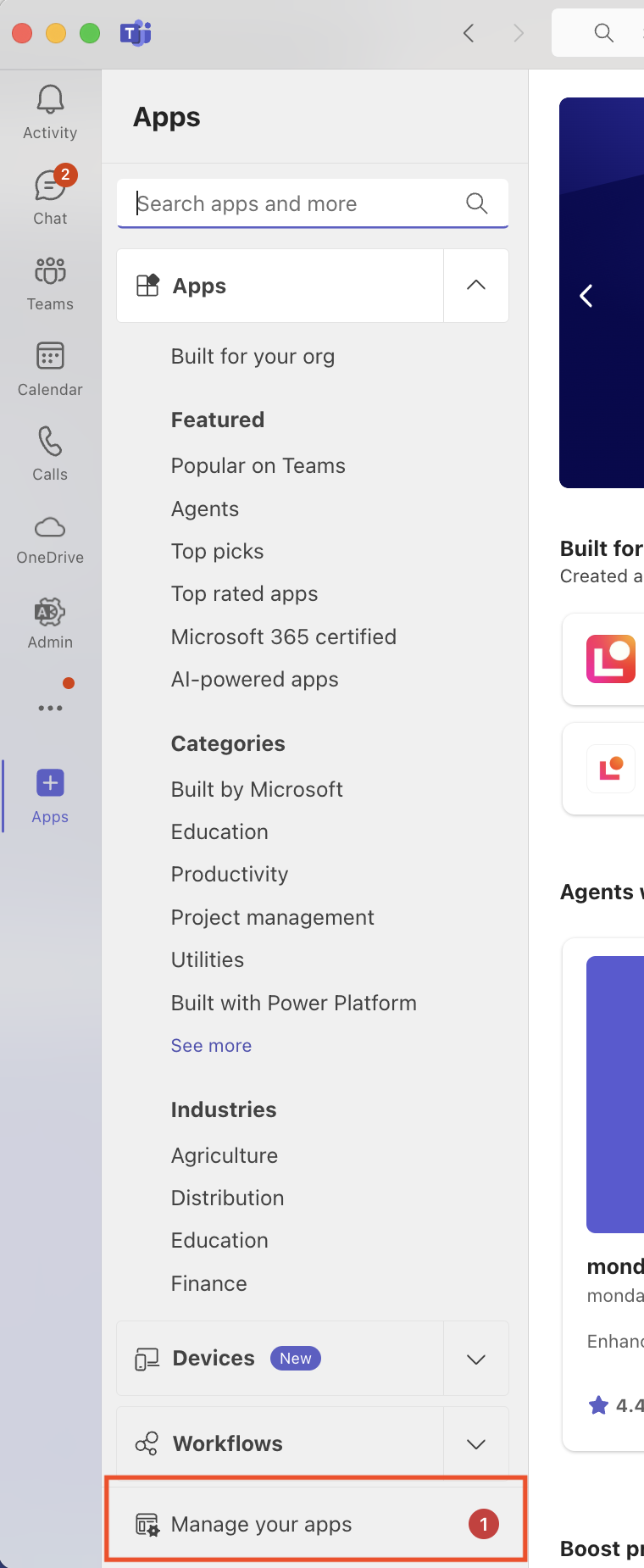
Navigate to Apps > Manage your apps
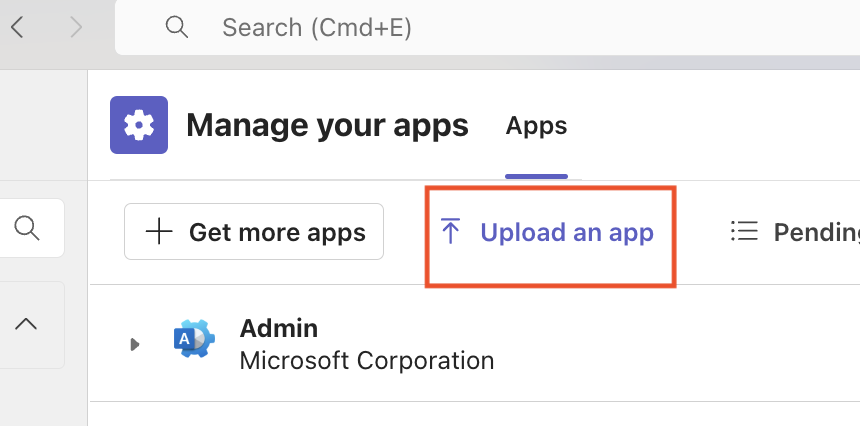
Upload the Lumos app package to your organization's app scope.
Publish the app so it's available to your employees.
In Lumos
Go to Settings → Notifications.
Enable the Teams channel for the domains where you want notifications and tasks delivered.
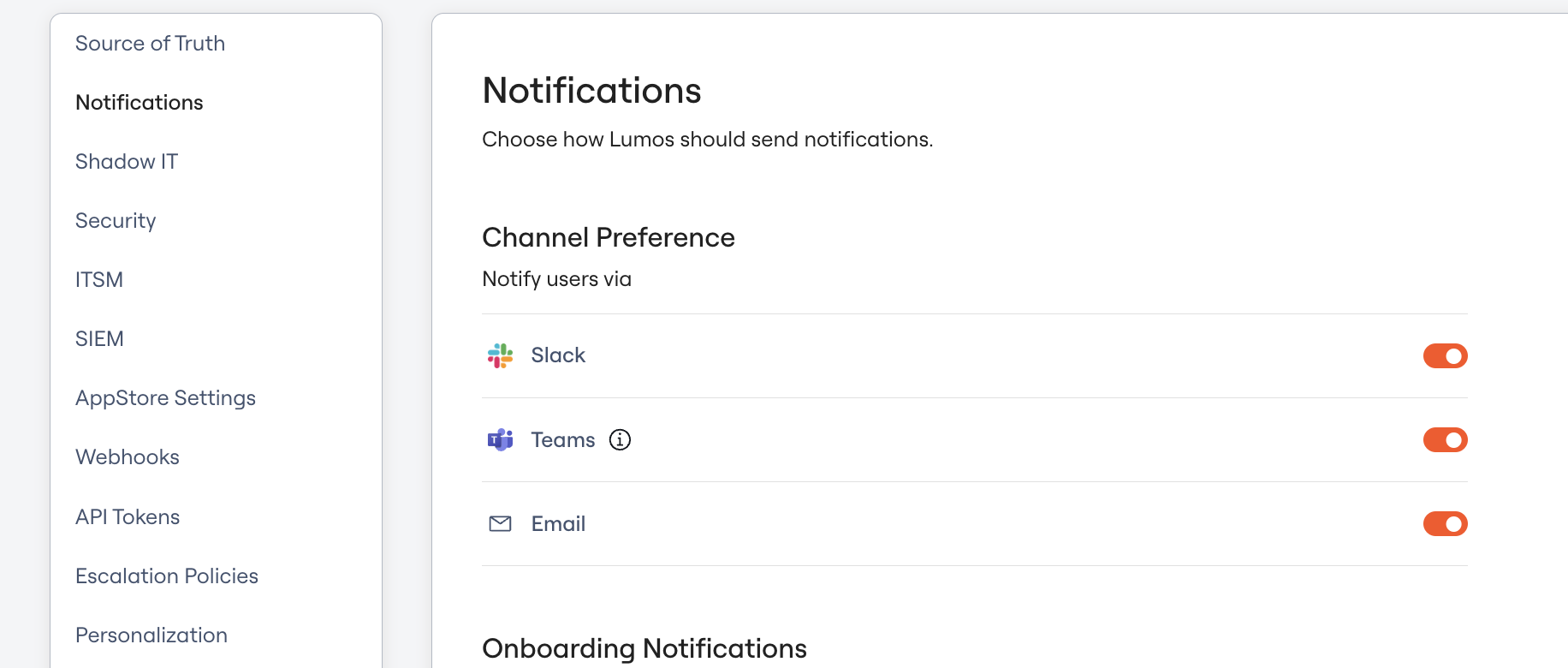
Users in those domains start receiving notifications and adaptive cards in Teams.
Limitations
Employees can't submit access requests from Teams at this time. Employees submit requests through the AppStore, Albus, Slack, or a connected agent, and the resulting notifications and tasks flow into Teams.
If your Teams tenant policy blocks custom app uploads, wait for the Microsoft app store listing.
FAQ
Do actions taken in Teams show up in the Task Center?
Yes. Every task in Teams is the same task you see in the Task Center. Approve a request in Teams and Lumos records it with the same audit trail as an approval made in the UI.
Can I turn Teams notifications on for some apps and not others?
The Teams channel is enabled or disabled per domain in Notification Preferences.
What does an approver see before deciding?
The adaptive card shows the requester, the target user, the app, the requested entitlement or group, the justification, and any policy or SoD context from the flow.