Rolling Out Access Policies: Admin Guide
Last updated: August 4, 2026
An access policy is only as good as the person keeping it accurate. This guide covers the full rollout: how to split sign-off between the policy owner and the reviewers they share with, and how to get both groups to review. Throughout, your admin team keeps control of what goes live.
The model in one sentence: owners propose, admins publish.
Two sign-offs, two different jobs
The policy owner signs off on the policy as a whole. Usually the team lead or manager. The question they answer: is this the right set of apps and permissions for this team?
A reviewer signs off on one specific grant. Whoever is closest to that access: the owner of the group being granted, the app owner, an app admin, a security reviewer. Their question: should this policy be handing out the access I am responsible for? Group owners you maintain in Active Directory and Office 365 come into Lumos automatically. For most grants, the right reviewer is already named.
The two roles work differently. The policy owner edits: they add and remove apps and permissions. Reviewers do not edit. You share the policy with them, and their sign-off lands as a comment. Neither one publishes.
Owners can | Owners cannot |
|---|---|
View their policies, and only theirs | Change policy conditions |
Add, edit, and remove apps and permissions, on draft policies | Rename a policy or edit its business justification |
See usage insights next to every app and permission | Publish or activate a policy, or reassign ownership |
Share their policies with anyone who should review, and work the comments | Give a reviewer edit access; sharing is view and comment only |
Before you start
The integrations that carry your owners are connected. Group owners maintained in Active Directory and Office 365 come in automatically.
Owners have the app-view permission. Grant Inventory → Apps → View → Basic Details from Settings → User Roles. One org-wide grant lets owners browse apps while editing a policy.
Phase 1: Prep (admin team, about a day)
Pick the first wave. Start with one department, or 10 to 20 policies. A pilot wave surfaces the questions owners will ask before hundreds of people ask them.
Assign policy owners in bulk. Select the policies, click Assign Owners, and pick the users or groups. Until you change it, every policy defaults to its creator as owner. Full steps: 📄 Assigning Access Policy Owners.
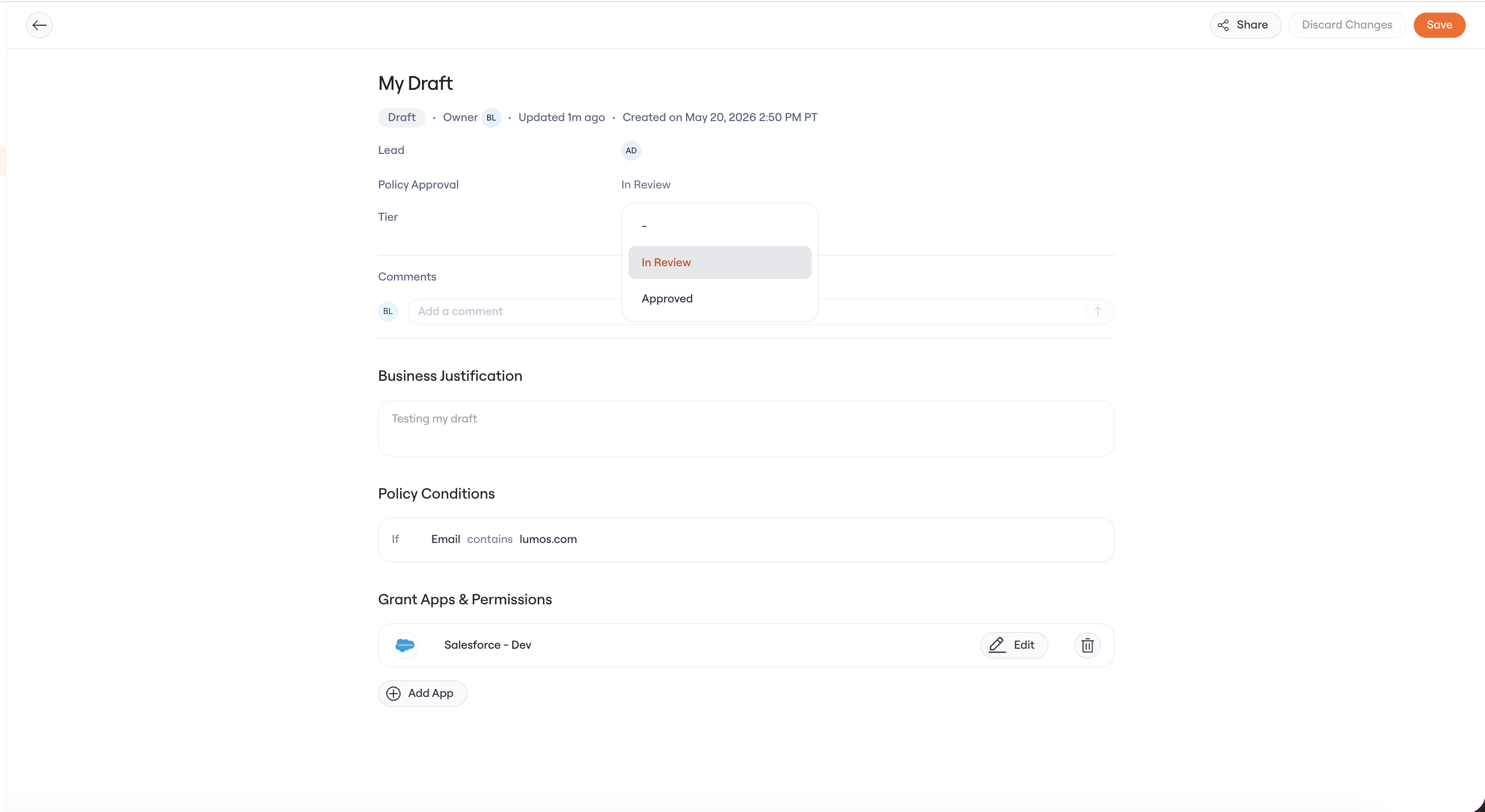
Add an approval attribute for each stage of sign-off. Create a custom attribute on access policies, a select, with the options your process needs: In Review, Approved. If more than one group signs off, create one attribute per stage, for example App Owner Approval and Security Approval. Each stage then gets a field of its own. You can see which stage a policy is waiting on, not just that it is unfinished.
Phase 2: Kickoff (program lead, one message)
Lumos does not yet email owners when they are assigned; notifications are planned. Until then, the kickoff is one message from the program lead with a direct link. Set a deadline about two weeks out and keep the ask small: one policy is a ten-minute review. Include a link to Reviewing an Access Policy as the Policy Owner so owners have the steps in front of them.
Kickoff message template:
You own the access policy for your team in Lumos. It defines which apps and permissions your team gets automatically. Take ten minutes this week: open the link, confirm the apps and permissions are right, and add or remove anything that is not. Conditions and publishing stay with the IAM team, so you are making changes, not shipping them.
Phase 3: Owners review their policies
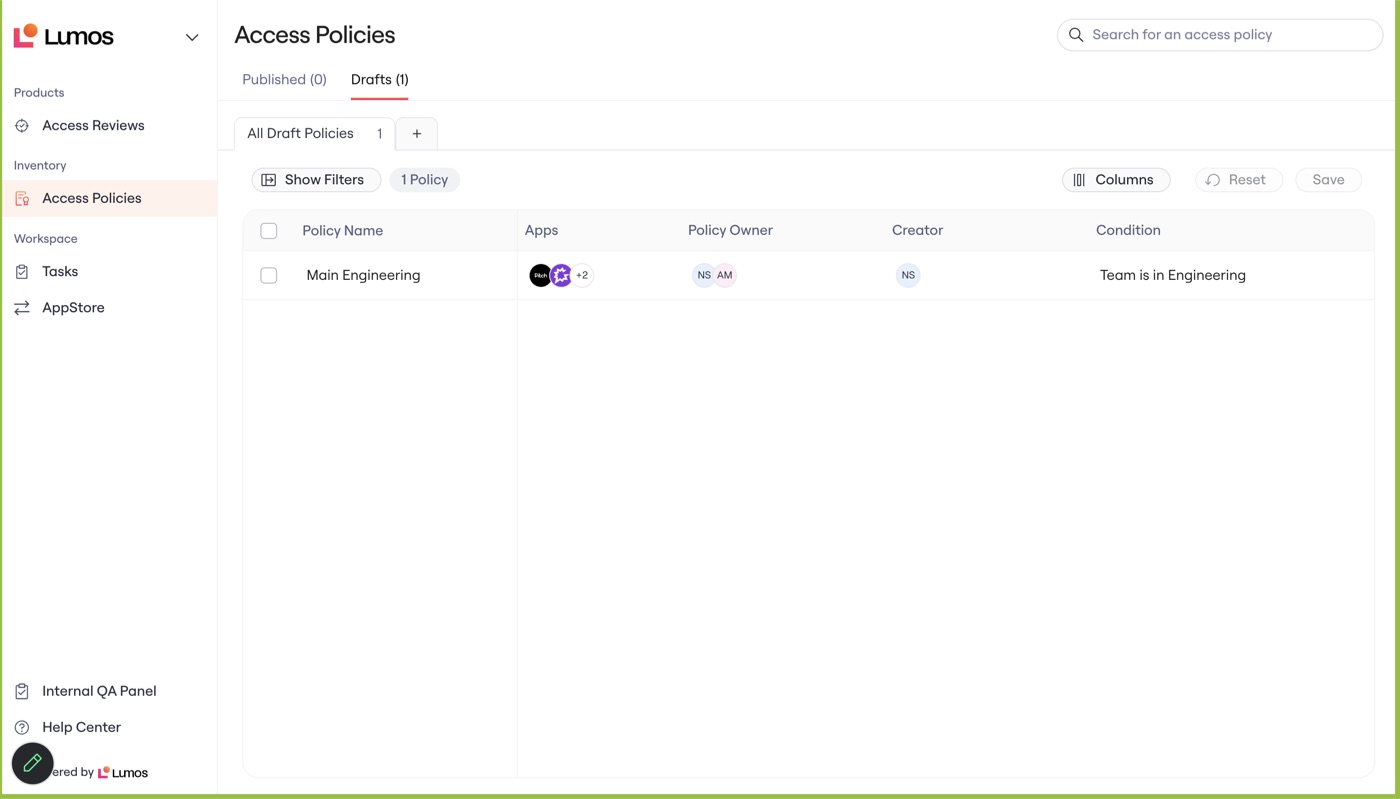
When an owner signs in, Lumos is scoped to the job. They see the Access Policies page with only the policies they own.
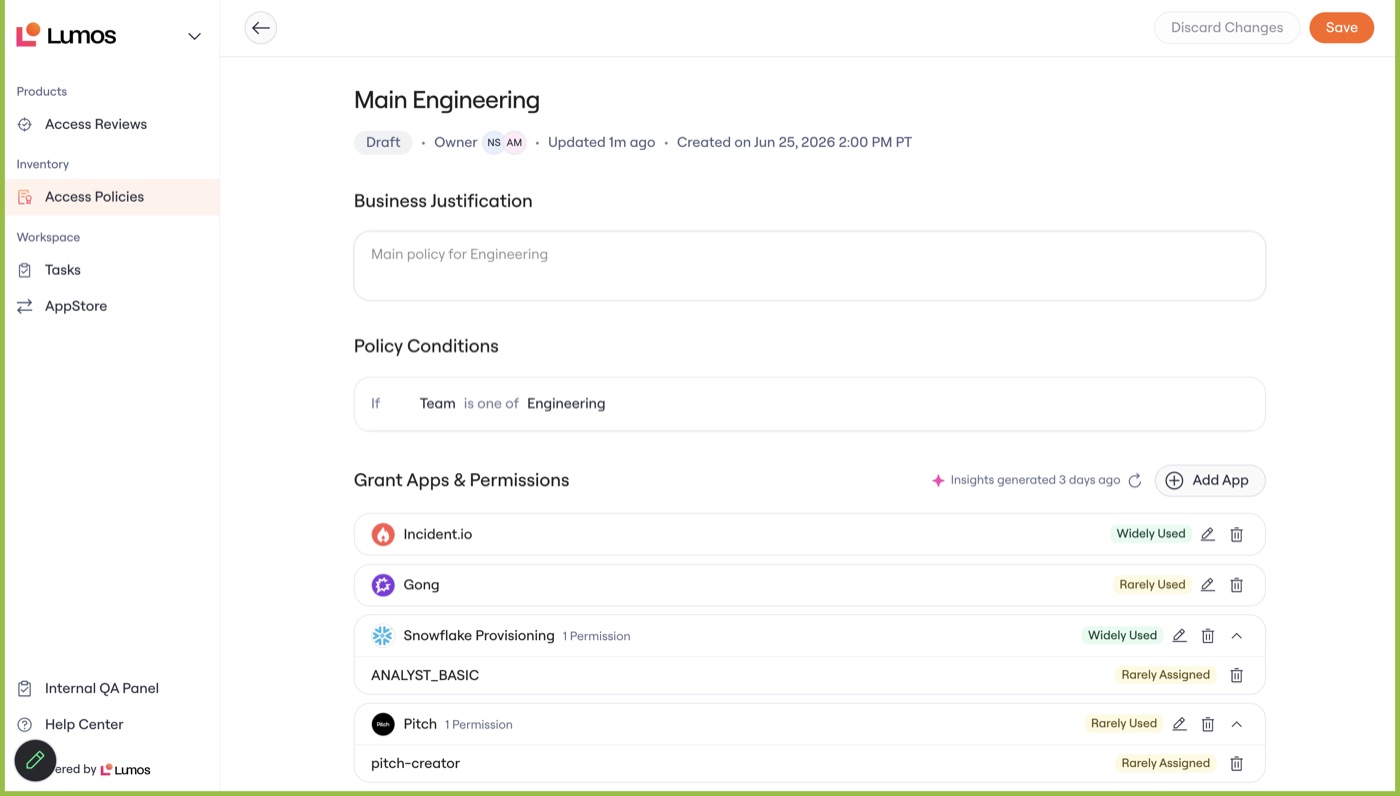
Inside a policy, the apps and permissions are editable and everything else is read-only. Next to every app and permission, Lumos shows an assignment or usage insight: Widely Used, Rarely Used, or Rarely Assigned. The data sits on the row they are deciding about.
The decision guide to give owners:
Widely Used: keep it. The team depends on it.
Rarely Used: remove it from the policy. Anyone who still needs it can request it through the AppStore, so removal is low-stakes.
Rarely Assigned: tighten it or remove it.
Something missing: add it. If the team uses an app the policy does not grant, add it with Add App.
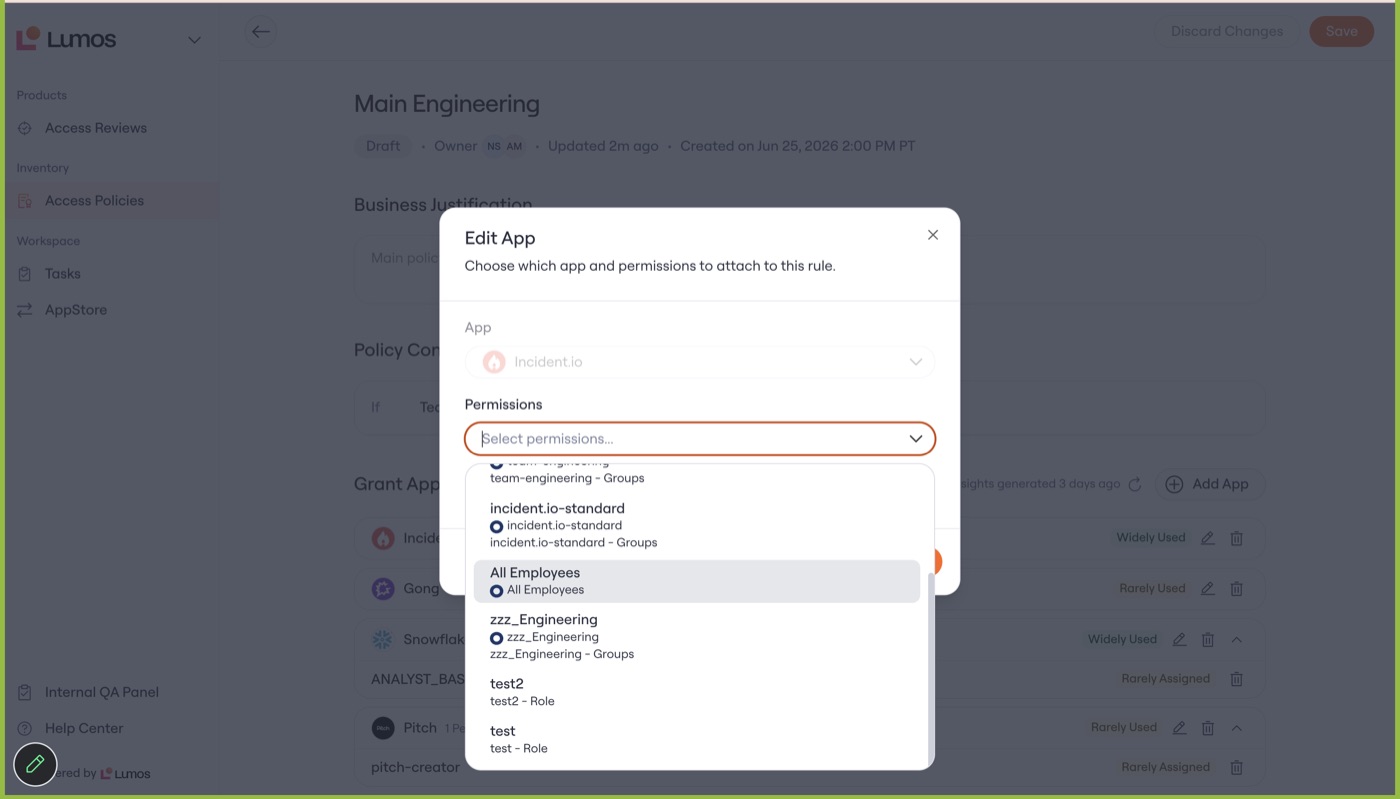
When editing an app, owners pick from the app's groups and roles, the same picker admins use.
Phase 4: Share the policy for a second review
The policy owner decides what their team should get. A reviewer decides whether the policy should be handing out the access they are responsible for. Share the policy with them, and their input should be added as a comment on the policy itself.
Share a policy for review:
Open the policy from Access Policies.
Click Share.
Search for the users or groups who should weigh in. There is no fixed role here: the owner of a group the policy grants, an app owner, an app admin, a security reviewer.
Click Confirm. Access takes effect immediately.
Admins and policy owners can both share. Admins can also bulk share from the policy list, which is the fast way to cover a whole wave at once.
What a reviewer can do: view the policy in both draft and published states, leave comments, and resolve them. They cannot edit the access, rename the policy, publish it, or share it on. Full steps: 📄 Sharing Access Policies.
The policy owner records the outcome on the approval attribute: Approved once every reviewer has signed off, In Review while sign-off is still out. Reviewers cannot set the attribute themselves; the policy is read-only for them, so their verdict lands as a comment and the owner updates the field to match. You track the attributes and view the comment thread for details.
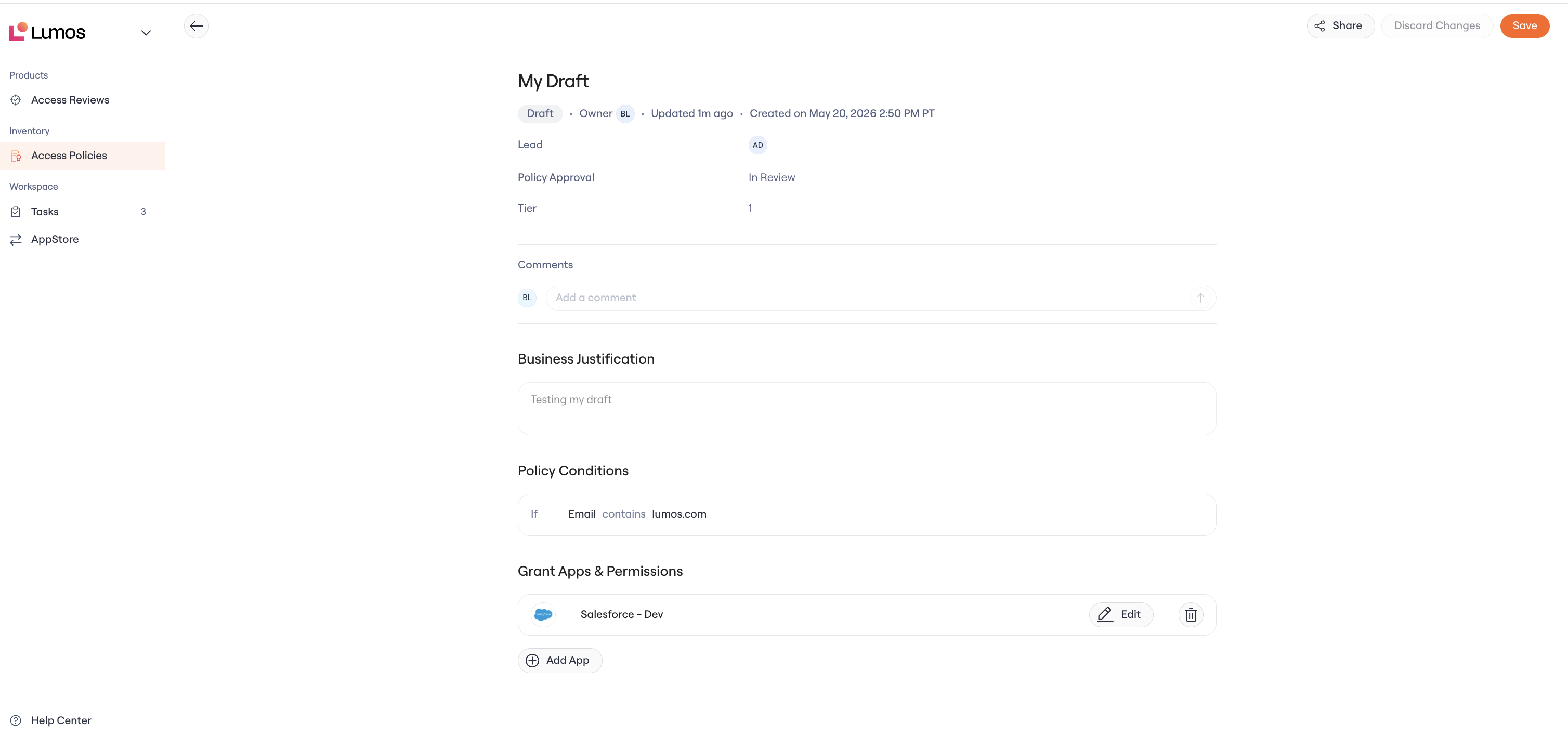
Lumos does not yet notify people when a policy is shared with them, so send the link with the ask. Send Reviewing an Access Policy as a Policy Reviewer along with it so reviewers know what is being asked of them.
Reviewer message template:
I shared an access policy with you in Lumos because it grants access you administer. Open the link, check the apps and permissions it grants, and leave a comment with anything you would change. If it is right as it stands, leave a comment saying so. The policy is read-only for you. The IAM team will make your requested changes, and the policy owner will record your sign-off on the approval field.
Work the comments as they come in. Answer each one on the policy and resolve it once the change is made or the question is settled. Resolved threads stay under See Resolved, so the reason a group is in a policy is still there at the next review.
Picking the reviewers is manual today. Auto-sharing is planned: Lumos will match each policy to the group owners it already ingested from Active Directory and Office 365, then share on your behalf.
Phase 5: Publish and audit (admin team)
Review what owners changed and clear the open comments from reviewers. If you use Role Mining, confirm the policy lines up with its recommendations. Once a policy's approval field shows Approved, publish and activate. Lumos writes every ownership change and policy update to the Activity Log. The audit trail for the whole cycle is already built when someone asks for it.
Keeping the review moving
Track progress from the approval column. Add the approval attribute as a column on the Access Policies table, then sort or filter on it. Everything still empty is the chase list, and In Review flags the policies still waiting on sign-off; open reviewer comments are your queue. With one attribute per stage, the columns tell you which sign-off a policy is waiting on. The nudge goes to the person holding it up. The attribute holds the current state, not a history. To see who approved and when, read the comment thread and the Activity Log.
Escalate after two quiet weeks. Loop in the owner's manager, or reassign ownership to someone closer to the team's day-to-day.
Rerun on a cadence. Quarterly works for most teams. The first cycle is the heavy one. After that, owners are just confirming changes.
Weekly nudge template:
Quick reminder: your team's access policy review is due Friday. It is one link and about ten minutes. Reply here if anything is unclear and I will help.
FAQ
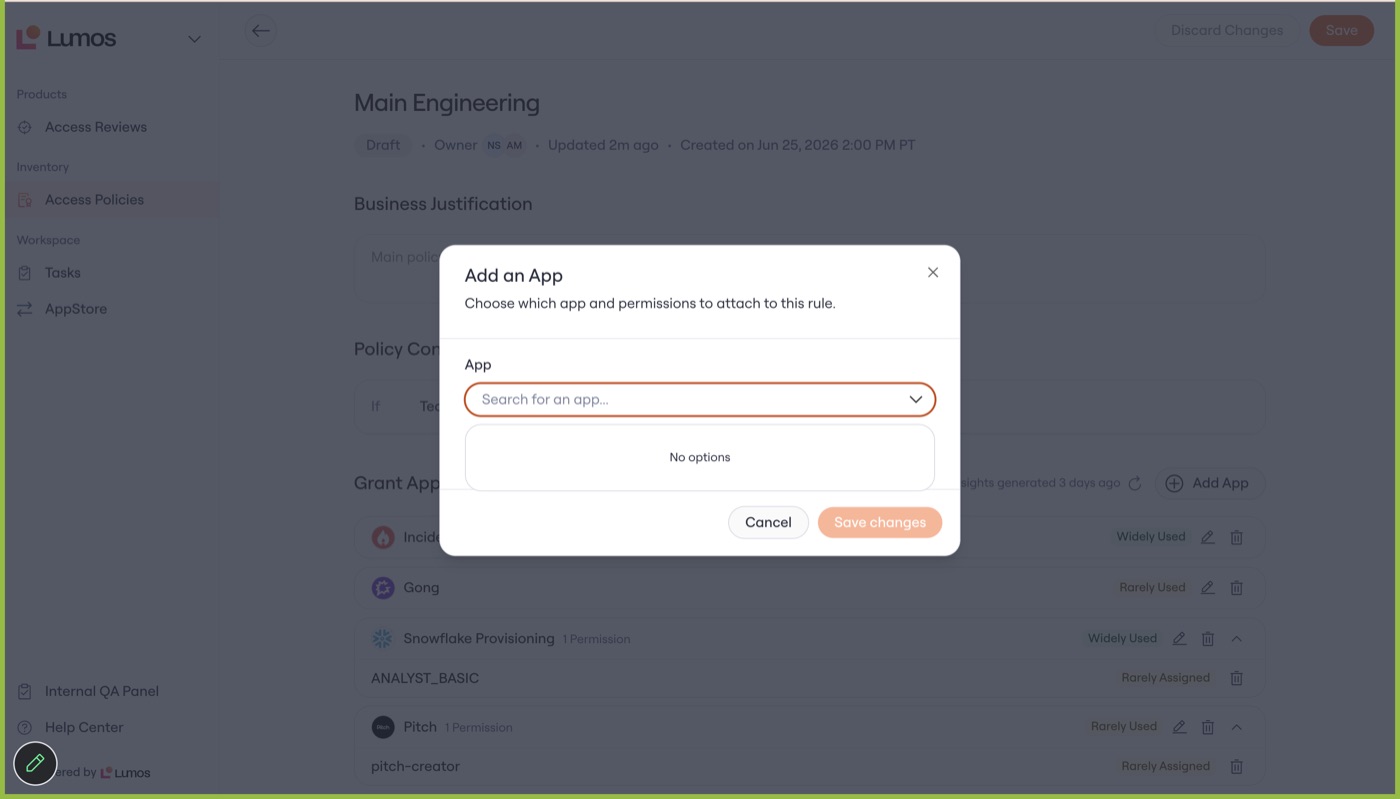
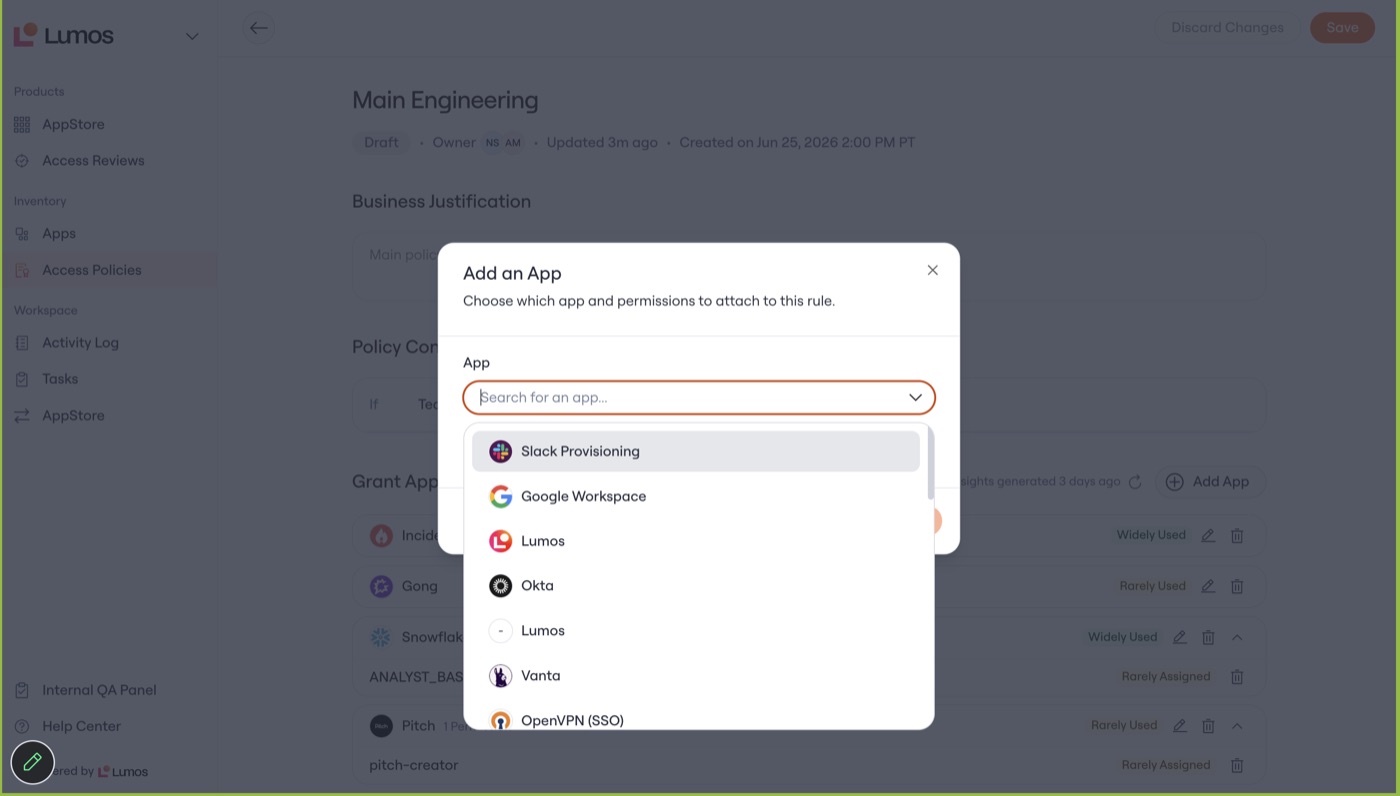
An owner clicks Add App and sees "No options." Why?
They are missing the app-view permission from Before you start. Grant Inventory → Apps → View → Basic Details once from Settings → User Roles, and it applies across the org.
Before, without the app-view permission:
After, with the permission granted:
An owner sees some apps in the picker, but not all of them. Why?
The permission was granted scoped to specific apps instead of org-wide. Owners see only the apps in scope, plus their own. Grant the permission at the org level to show the full list.
Does an owner need to be an app admin for the apps in their policy?
No. The app-view permission is org-wide, not per app.
Are owners notified when they are assigned?
Not yet; notifications are planned. Until then, the kickoff message with a direct link does the job.
Can an owner accidentally change who gets access?
Owners cannot touch policy conditions, so the population a policy covers never changes without an admin. Publishing and activation also stay with admins.
What if an owner thinks the policy itself is wrong (wrong team, wrong scope)?
Conditions are admin-owned, so the owner flags it to the admin team rather than editing it themselves.
Can a reviewer change a policy I shared with them?
No. Sharing is view and comment only. If you want someone editing the apps and permissions, assign them as a policy owner instead.
Are reviewers notified when I share a policy with them?
Not yet; that is coming. Send them the link with the review ask.